Thursday, February 6, 2014

SSL Reverse Proxy using Citrix NetScaler VPX Express

Part 5 in a series

This part is the final post of the series; it builds on the previous posts by adding an SSL-based content switch on top of our previously-created simple HTTP content switch.

The NetScaler does a fine job of handling SSL traffic in a manner similar to the way it handles the unencrypted HTTP traffic. The key differentiator—other than making sure to distinguish the traffic as being SSL-bound—is the inclusion of certificate handling.

Of course, the "outside" or Content Switching virtual server must have an SSL certificate; the client trying to reach your host(s) is expecting an SSL connection, so the listener responding to the particular host request must respond with a conforming certificate or he/she will have to deal with certificate errors.

The "inside" server that's the target of Content Switching probably wants to communicate with its clients using SSL, too (In some special cases—known as "SSL Offload"—the inside server allows non-encrypted connections from specific hosts that are pre-configured to handle the overhead of SSL encryption; NetScaler can do this, too). In order for the NetScaler to perform as a proxy, it must have sets of SSL certificates for both the inside and the outside connections. Once you have those, you can quickly set up an SSL-based content switching configuration that mirrors the HTTP setup.

And the best part? Only the Content Switching virtual server needs to have an SSL certificate that is signed by a trusted root! (Caveat: it must be either a wildcard or multiple-SAN certificate. Remember: the DNS name must match either the CN [common name] or one of the DNS SAN [subject alternate name] entries of the host certificate) The "inside" servers that you're putting "behind" the NetScalers can have self-signed certificates or certificates signed by an in-house CA.


A little about Certificate files

The NetScaler has a ton of flexibility for working with many certificate formats—PEM and DER encoding, PKCS#12 bundles, etc.—but I find that it's easiest and most flexible when using individual, single-certificate (or key) PEM-type, Base64-encoded text files. It's easiest if you just have them ready-to-go; if you don't, you can learn about using OpenSSL, or you can simply use an online converter like SSL Shopper's Certificate Tools. Personally, I use a local copy of OpenSSL.

For the purpose of this tutorial, I'm going to assume you have all the certificates you need, already in PEM format.

SSL handling in the NetScaler

The SSL feature must be enabled to do any sort of SSL load balancing or proxy configuration; it is enabled in the same place that Load Balancing and Content Switching is enabled, off the System->Settings menu:

Preparing Certificates

Once that's enabled, the yellow warning symbol for the Traffic Management function disappears. The first step to managing certificates is to get certificate files uploaded to the NetScaler. Select the SSL option itself:

then "Manage Certificates / Keys /CSRs" in the Tools section of the right-hand column.
The dialog resembles a file management window because it essentially is: it's a tool that lets you upload certificate files to the NetScaler's certificate store. Click [Upload...] to load the certificate files on the NetScaler. You'll need both the certificate and its private key, plus any CA certificates—including intermediates—that were used in a signing chain.
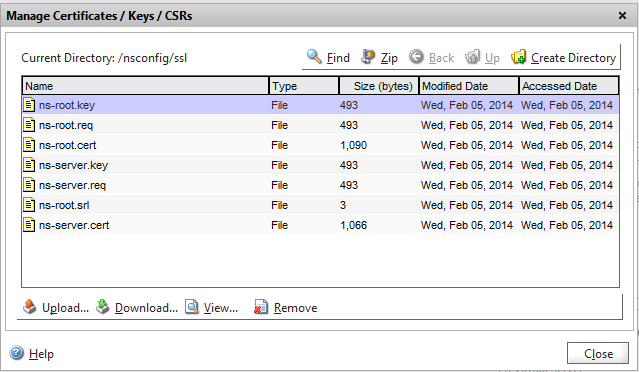
Once you have your certificates loaded, close the file dialog and expand the SSL menu tree and select Certificates

Click [Install...]. This process both creates a configuration object that the NetScaler can use to bind certificates to interfaces, and it gives you the opportunity to link certificates together if they form a signing chain. Although you can also use this interface to perform the upload function, I find it works more consistently—especially when handling filenames—to upload in one step, then install.

The server certificate itself needs to be installed using both the certificate and its key file; signing CAs can be loaded with just the certificate file.

Once all the certificates in the chain are loaded, select the server certificate and click the [Action] dropdown, then the "Link..." option. 

If you've got a recognized file and the CA that signed the file is already installed, it will be pre-selected in the Link Certificate dialog. Click [OK].
Repeat with any other certificates in the chain, back to the CA root.


Creating the Content Switching Configuration

With minor exceptions, we'll follow the same process for creating a standard HTTP content-switching config. Specific differences will be highlighted using italic typeface.
  1. If they don't exist already, create your server entries. Because I'm building on the work previously documented, my servers are already present.
  2. Create SSL-based services for the servers; configure https as a monitor:
  3. Create SSL-based Load Balancing Virtual Servers
    1. Set the protocol to SSL
    2. Disable "Directly Addressable"
    3. Enable the SSL-based service
    4. Switch to the SSL Tab
    5. Highlight the server certificate and click [Add >] to bind the certificate to the server
  4. Create the new Content Switching policies. We can't use the previous ones—even if they're functionally identical—because we're going to use them on a different CS Virtual Server.
  5. Create (or modify) an SSL-based Content Switching Virtual Server
    1. Set the protocol to SSL
    2. Set the IP address for the virtual server. It can be the same address as the HTTP virtual server.
    3. Insert policies and set targets to SSL-based targets
    4. Switch to the SSL Tab
    5. Highlight the server certificate and click [Add >] to bind the certificate to the server
    6. Highlight the next CA cert in the signing chain; click the drop-down arrow on the [Add >] button and select [as CA >] to add the signing cert.
    7. Repeat step 5 for all remaining certificates in the signing chain.
    8. Click [Create] when complete.
As soon as the configuration is "settled" in the innards of the NetScaler, the "State" should indicate that it is "Up" and you can again test using your HOSTS file. Note: you may still get a certificate error if your URL doesn't match the name in the certificate bound to the Content Switching virtual server (eg, a short name will not properly resolve against a domain wildcard certificate).

Parts in this series:

HTTP Reverse Proxy using Citrix NetScaler VPX Express

Part 4 in a series

So far: the first three parts of this series dealt with the introduction of a problem (multiple servers behind a NAT firewall that use the same port) and solution (Citrix NetScaler VPX Express); laying the groundwork for configuring the solution; an overview of what we'll be configuring.

Because it is possible to set up content switching with a single host (the degenerate case), this is the method we'll begin with. While it doesn't really do much for us, simply repeating the steps for a second (and subsequent) will result in a working solution. Other guides lay down the steps with two hosts already in mind, and teasing apart the pieces to apply it to your situation might be more difficult.

Groundwork

Some planning must be done prior to doing this setup. The first is a set of IP addresses that you'll need to have handy. This post will use the following addresses; substitute them with your own:
HostIP
CS Virtual Server192.168.106.37
Target Server A192.168.106.38
Target Server B192.168.106.39

Enable Features

The bare-bones install of the NetScaler has a number of features enabled, but the ones we need for content switching are disabled. Open the System configuration tree and select Settings

Select "Configure basic features" and make sure the following features are enabled (checked):
  • Load Balancing
  • Content Switching
If you selected "Traffic Management" in the left menu before and after enabling the feature, this is what you'd see:
Default, features disabled
LB and CS enabled
Begin the setup by expanding "Load Balancing" under "Traffic Management" and select "Servers":

In the center section, click [Add...] and create the server. The "Server Name" is an identifier used in the NetScaler; it does NOT have to be the FQDN or short name for the server.


Then switch to the Services option

and create a protocol-specific entry for the server, including a monitor
(I like to use http because it doesn't require any customization; a custom http-ecv monitor can be created to check for the explicit function of the target server, but that's beyond the scope of this series).

I also recommend using a naming convention that includes the type of object you're creating ('svc' for the service) and the protocol it's tied to ('http'); that will make it more obvious where a given object comes from when you see them bound in other places.

Switch to the Virtual Servers menu


and click [Add...] to build the virtual server.

Make sure you uncheck the "Directly Addressable" option; this eliminates the need to give the virtual server its own address (we want to give an address to the Content Switching virtual server) and select the service we just created.

Switch to the Content Switching menu and select "Policies"


Click [Add...] to create a policy to trigger sending the traffic based on the hostname used in the HTTP header.

Select the Virtual Servers option under Content Switching

and click [Add..] to create a new virtual server.
This server gets the IP address to which we'll be forwarding traffic.

Click "Insert Policy" to insert a new policy

Select the new policy from the drop-down, then pull down the list of targets, selecting the new load balancing server. You will get a warning about the "Goto Expression"

Select [Yes], then [Create] to make the server.

At this point, your setup should function for the first server you configured!

Now: go back to the step for creating the outside server and repeat except for creating a new Content Switching server.


Now: Open the existing server

and add another policy, using the new server's policy and LB virtual server entry:


You can test this internally by either updating your DNS server entries or adding a line to your machine's HOSTS file:
192.168.106.37 serverA serverB

Point your browser at http://serverA after you make the change, and voila!, you get to the target. Switch to http://serverB, and you get that target instead.

Once you've verified the functionality from the inside, update the forwarding on your NAT firewall and test using an outside address (eg, use a cell phone that's not on your home WiFi).

Parts in this series:

Wednesday, February 5, 2014

Citrix NetScaler Content Switching Overview

Part 3 in a series

In the first part of the series, I discussed the problem facing a user with a single outward-facing public IP address, when he/she wants to host multiple services behind a NAT router that use the same port. My proposed solution is the Citrix NetScaler VPX Express, for which I documented the installation and initial configuration in the second part.

Content Switching, NetScaler-style

Before diving into the configuration steps, I thought it would be helpful to diagram the interconnections and data flow when a content switching setup is completed; I sure could have used it when I started down the path of figuring this out for myself...

Terms

Load Balancing Server
A host external to the NetScaler, specified by name and IP address
Load Balancing Service
A specification of the sort of traffic (protocol & port) that a Server is expecting, and that the NetScaler is switching. One or more "monitor" rules should be attached to the service so that the NetScaler can determine whether the target server is actually available.
Load Balancing Virtual Server
A specification of an "internal" endpoint used by the NetScaler to route traffic. In the case of SSL traffic, a copy of the target server's private key and certificate chain will enable SSL offload.
Content Switching Policy
A definition or rule that is used to identify or select traffic in order to correctly forward requests.
Content Switching Virtual Server
An IP+Port+Protocol specification that the NetScaler uses to listen for incoming traffic. This address is where your NAT router will forward the traffic to be switched. The CSVS has its own SSL certificate pair, and can thus decrypt and review all incoming requests against policies and take action.

Traffic flow


  1. An external request is received by the NetScaler on the IP and Port configured as a Content Switching virtual server.
  2. The NetScaler inspects the traffic and if it matches a policy rule, forwards the traffic to the target configured for the rule.
  3. The target Load Balancing server accepts the traffic, passing it along to the server+service specified.
  4. The internal server receives a request as if it were being originated from the NetScaler's Subnet IP.
  5. If the first policy rule didn't match, subsequent policy rules are evaluated, sending traffic to targets at the first match. If no policy rules match, a default target may be configured; otherwise, traffic is discarded.

Takeaway

Content Switching elements are configured in the reverse order of traffic flow:
  1. Servers
  2. Services
  3. Load Balancing Virtual Servers
  4. Policies
  5. Content Switching Virtual Server(s)
Other items:
  1. When using multiple Content Switching Virtual Servers, each Policy—by name—can only be configured for one CSVS at a time. As long as they have different names, however, they can have the same matching criteria (eg: HTTP.REQ.HOSTNAME.EQ("fqdn")).
  2. One-to-many relationships can exist between a target server and CS Policies; you don't have to go crazy building complex boolean logic into the expressions, just add additional Policies pointing at the same target.
  3. A variant of SSL Offload (SSL_BRIDGE) is not possible when using Content Switching. SSL_BRIDGE cannot inspect the headers used by the client in order to know where to send the traffic.

Parts in this series:

Citrix NetScaler VPX Express installation

Part 2 in a series

In the previous post in this series, I posed a problem that could be solved by using the Content Switching capability of the Citrix NetScaler VPX Express. This post focuses on the steps required to get started with the NetScaler virtual appliance; a certain amount of preparation is required before you ever start configuring for reverse proxy operations.

Get the Virtual Appliance

The virtual appliance is currently offered with a 56-week free license; at this point in time, the license can be renewed at no cost, too. You will need a Citrix Login, however: they want you in their marketing database! Luckily, there's a short link that will take you to a starting page; after you log in, you'll be presented with a long list of available versions for XenServer, Hyper-V and VMware. Don't let the "ESX" label fool you: it works just as well on ESXi as ESX.

I've always downloaded the latest/greatest version that is available for my platform:
After downloading, you can unzip the file and import the OVF. I recommend doing it once, converting it to a template, then deploying two VMs from the original.

Don't worry about the network adapter warning when you configure the import parameters: you'll only need one in the "proxy on a stick" configuration.
 Before you convert the VM to a template, edit it and a) remove the second NIC and b) manually set the MAC Address:
The manual MAC is really important: The NetScaler license is tied to the address, and setting it ahead of time will make it easier to re-use a license if you have to re-install one of the two nodes; putting the manual MAC in the template will result in a manual MAC when you deploy a new VM from it.

This also allows you to go straight to the license portion without waiting for the environment to be loaded and partially-configured.

Licensing is available on the same page as the appliance
Unfortunately, Citrix's licensing process is a bit convoluted; it's also outside of the scope of this series. Once you have the license files in hand, however, you're good for a year...

After you deploy the VM, edit the MAC address (eg, 00:50:56:aa:bb:01) and power up your appliance. Open the console; the initial configuration happens using that interface.

Supply the NetScaler's individual address information, save and allow it to restart:
Feel free to "spin up" a second instance, modify its MAC and get it configured; we'll bind the two together into an HA pair in a minute...

Once the first NetScaler is up and initialized, point your favorite Java-enabled (v7b45 or earlier: the Java applets are not signed) browser. Log in using "nsroot" as the username and password; on v10 appliances, leave the deployment type as "NetScaler ADC."
In addition to the IP address you alread entered for management purposes, you must add an IP that it uses to interact with hosts on the subnet; we'll also upload that license file that we already retrieved because we knew the MAC address ahead of time. And although you'd be tempted to change the admin password from "nsroot" at this time, don't: I've run into issues getting the HA pair to work if the password is changed prior to pairing.
Continue and upload the license file:
If you matched the MAC addresses properly, you get the happy green bar! Continue/close until you get the prompt to restart the appliance, then reboot the NetScaler:
Repeat these same steps on your second NetScaler; when both appliances are licensed and you've logged back in, we can proceed with getting the devices paired.

Once you can log into both, pick one to be the Primary of the HA pair and select System->High Availability from the configuration menu:
Click [Add...] to start the wizard to add the other node (at this point, the first Java applet gets loaded on your browser, and you'll know fairly quickly if you'll be opening a different browser window to troubleshoot getting the damn thing to work correctly)
Enter the other node's IP address in the box, leave the checkboxes alone, and enter the default credentials even though they're the same as this node.
Assuming everything else is "happy" in the environment, you should get a confirmation that the HA pair is set up, and if you set the same Subnet IP on both nodes, it might even failover as part of the configuration being established.

You can feel free to browse around the NetScaler capabilities; set up NTP time, etc., as optional exercises. We'll pick up the configuration of a basic content switching configuration in the next part.

Multiple servers behind One IP

Part 1 in a series

As a systems consultant, I have to deliver a number of software and hardware solutions to customers; in order to do so, I have to know what I'm doing (I know: shocking!), and that takes study and practice. As followers of this blog know, I've got a nice little setup in my basement, and the process of teaching myself these technologies, I've gotten to the point where I want to actually use some of those things.

So, I do what lots of people do: I set up these services and enable port forwarding in my NAT firewall, sending the traffic on a port-by-port basis to the servers that are listening for connections.
Port Forwarding behind a single IP address
In some cases, I don't even have to set up a forward: the device on my network uses a protocol known as "Universal Plug 'N Play" (UPnP) to request port forwarding directly from the router. This all works well as long as I don't have more than one "inside" device listening on a given port. Unfortunately, this leaves me in a conundrum: most of these new & useful applications are using web services—or maybe just the TCP/80 and TCP/443 ports—which makes it hard to manage behind a home router.
The problem: only one destination per port
One alternative is to use non-standard ports for the connections; unfortunately, many applications don't permit the use of non-standard ports (erk!), or when they do, their use is incredibly cumbersome on the client.

Another option—less desirable, and not always functional—is co-installing everything on a single machine. This sets you up for all sorts of compatibility issues and potentially negative interactions. Plus: when we have a virtual environment available, isn't it desirable to have single-purpose machines to avoid all those annoyances?

Luckily, there's a solution: use a proxy (or, more precisely, a reverse proxy). A standard proxy will accept many different outgoing requests and act as a single point of contact for the returning requests. A reverse proxy takes a single incoming request, and after inspecting the request, decides which one among many destinations will receive the traffic.
Reverse Proxy to direct traffic
There are a lot of solutions out there that can provide this solution; this series of blog posts will focus on the Citrix NetScaler VPX Express. This solution has several things going for it, not only for use in the home lab:
  1. It's free.
  2. A pair is easy to configure for high availability (and is still covered under the no-cost license!)
  3. It can be configured for multiple protocols, not just HTTP and/or HTTPS
  4. A simple license update and it can support far more than the included 5Mb/s capacity.
  5. "Playing" with it can directly translate into using the product in business scenarios.

Parts in this series:

Homelab, part troix

With VSAN in beta and having a requirement for a three-host minimum, I was getting antsy: how could I test it in real-life scenarios? Sure, I could've spun up a virtual ESXi instance on one of my two hosts, but that would defeat the purpose of duplicating customer scenarios.

So, I once again reached out to my friends at Stallard Technologies, Inc. for a third host to match the two I'd already purchased. Thankfully, they still had my preferred configuration available, and they even had it on sale for the same price I'd paid before. With my original setup designed around those older 2U hosts, I was still using the 2U brackets to hold each of the 1U servers. With the addition of the third server, I simply move it from side-to-side if I need access to the host that's closer to the wall.

At this point, I'd also reached the limit of the ports available on my Cisco SG300-28, so I needed some changes there, too: I wouldn't just buy 1 switch, but I'd instead pick up a pair so I'd have redundancy for the hosts, and I'd uplink the switches to the Cisco as my "core" switch, as well as cross-connect the new switches to prevent either uplink set as a single-point-of-failure. Given the costs and the number of ports I was planning, SG300 was out of the running due to cost considerations. Based on recommendations, I chose a pair of HP V1910-24G; together, they essentially cost the same as the SG300-28 did.

I again turned to the StarTech equipment brackets, this time for the 3U model to accommodate the three switches.
Network Central
The addition of all those switches were nice, but I was starting to get worried by all those devices with single power supplies: sure, I could plug them all into a UPS, but what happens when the UPS quits? I searched for and found a working automatic transfer switch (ATS) on Ebay for cheap, and added that to the mix, again using a StarTech 1U bracket to tuck it behind the desk.

With common VSAN configurations being designed around 10Gb/s, I knew that kicking the tires with 1Gb/s connections was going to require some careful design decisions: two connections per host, shared with the other IP storage in my environment was going to be a bit thin. A side-effect of adding more network ports, however, was the ability to also increase the number of pNIC ports in the hosts, so I added another dual-port Intel adapter to bring the per-host count up to 8 Gigabit ports.

In my current setup, I have three VDS switches:
  1. Management & vMotion (2 x pNIC)
  2. Guest networking (2 x pNIC)
  3. IP Storage (4 x pNIC)
The first and last switches have vmkernel port groups; the IP Storage switch also has a VM portgroup for in-guest access to iSCSI. It looks a little like this:
In this configuration, I get 4x1Gb/s "pinned" connections for VSAN, two "pinned" connections for iSCSI and two vmkernel NICs for independently-addressed NFS shares. Between NIOC and physical load balancing that's available in the VDS switch, I don't think I'll overwhelm the iSCSI with VSAN (or vice-versa).

This configuration also makes it so no single-chip failure can take out an entire block of services: adjacent pNICs are on different assignments, and paired adapters are either on-board or expansion card.

With 9 connections from each host (8 data NICs for the host; 1 management NIC for the hardware), it was time to get a little more serious about cable management. I ended up buying custom colored patch cables from Monoprice, along with a length of "wire loom"; the loom allowed my to bundle the data cables together into a single, tidier bulk cable. As the diagram above shows, the colors were assigned to NICs and each pair was additionally marked with some black electrical tape. All motherboard-based ports were patched into one switch, while the remaining ports were patched into the second. It's now all very tidy and consistent.

When I purchased those original hosts, I didn't get drives with them; I pretty much presumed that I'd boot from SD card and use shared storage for 100% of the workloads.

Enter PernixData FVP: I'd already had a couple of Intel i520-series SSDs from testing the performance of cache in my iomega arrays (conclusion: it doesn't help), so the first disk installed in my hosts were 240GB SSD.

Enter HP StoreVirtual VSA: I've been a long-time fan of the former Lefthand VSA, and after receiving the latest version as a long-term NFR copy as a vExpert, I decided I needed some capacity to do some testing. I searched around and decided that the Seagate Constellation.2 enterprise SATA were the right choice: sure, they were limited by their interface and rotational speed, but they were also backed by a 5y manufacturer's warranty and had a decent price point for 500GB, all things considered. Two more spindles added to each host.

Enter the third host and VSAN: although the hosts already had what I'd need to do testing (SSD & HDD), I didn't want to tear down the other storage, so it was back to the well for more SSD and HDD.
As they stand today, all three hosts have full inventory of disk: 2x 240GB SSD, 4x 500GB HDD.

Sunday, September 15, 2013

Revisiting the Home Lab

Although my home lab has performed flawlessly (aside from the occasional lost hard drive in the NAS boxes), the cornerstone equipment—two Dell PowerEdge 2950 hosts—were a little dated when acquired and have certainly shown their age as post vSphere 5.0 releases (and their accessory services & features) come out.

In short, they weren't cutting it anymore: not enough RAM, physical NICs that don't support NIOC, limited cores, limited CPU/RAM features for the hypervisor, etc.

But, having "saved my pennies" while working with the 2950s, I have treated myself to new kit.

I could have gone down the path of "Baby Dragon"—and had I more free time to do system builds and support my frankenservers—but instead chose recertified Dell PowerEdge R610s from Stallard in my home town of Kansas City, getting another set of enterprise-class servers with a 1-year warranty from STI to boot.

Of several criteria, I knew I wanted a recent generation of hardware with 96 to 128GB of RAM per host. Rackmount would be a good replacement for the existing hosts, as long as the "ears" on the new hosts would work with my crazy vertical setup. PCIe was a given, but with the enormous capacity available among 3 NAS boxes, local storage wasn't a consideration. Finally, I wanted a system that had an inboard SD card reader so I could boot via Flash.

There are many, many options to fit the bill: I watched eBay and Craig's List, checked with my company's NFR purchase options, and several recommended resellers of reconditioned gear. With STI in the area and the option to take direct delivery (no shipping!!), there just wasn't anything else that fit the bill.

I took delivery of the new servers on Friday, 13-Sept, and set about swapping new for old. After putting the first host into maintenance mode and removing it from storage & DVS, I dismounted it and swapped the 2-port Intel server NIC into the new server.

I then mounted the new server after dropping an 8GB "Class 10" SD card into the internal reader, and booted to the vSphere install CD.

For those of you who have done this, you know how quickly ESXi installs; a little additional configuration for storage and vmkernel nics and I was ready to perform my first vMotion to the new host (what I would normally consider a definitive test of a cluster setup). A final step to run Update Manager against the host to get it fully patched, and I was "In Production" on the first host.

I repeated the steps with my second old/new pair, and even with interruptions around the house, was done with the swap in a handful of hours. (Try THAT with a non-virtualized system!)

New lab specs:

  • Dell PowerEdge R610
  • 96GB RAM (12x8GB)
  • 2x Intel E5540 (Quad-core, 2.53Ghz, Hyperthreading enabled)
  • Dell SAS 6/iR; No internal storage
  • Boot from 8GB SD Card
  • 6x 1Gbps (4x Broadcom 5709, 2x Intel 82571EB)
  • Redundant power
  • iDRAC Enterprise for "headless" operation
Closing Notes:
By choosing to go with Enterprise class equipment, both now an previously, I also have a charitable organization that is quite interested in taking my old 2950s; while I may have out-grown them, these servers would be the first "true" servers they'd ever had. Additionally, the servers remain on the HCL for VMware, so it's quite likely I'll be able to get them to put in VMware rather than trying to do physical server installs on them.