Showing posts with label vCenter. Show all posts

Wednesday, February 6, 2013

Re-engineering vCenter: a proposal

After fighting my own instances of SSO and vCenter in the vSphere 5.1 management suite, seeing posts from others that have run into the same issues or other new and interesting ones, and generally counseling people to hold off on upgrading to 5.1 because of vCenter issues rather than hypervisor issues, it struck me that I've not seen very many suggestions on how or what to fix.

I'm just as guilty: It's far easier to complain and expect someone else to fix the problem than to wade in provide solutions.

So I did a bit of thinking, and have a set of ideas for re-engineering vCenter to overcome perceived faults.

At any rate, here we go...

Solution 1: SSO as a "blackbox" appliance.

Single sign-on has probably received the worst press of all the new vCenter bits in vSphere 5.1. By divesting this particular piece of all its Windows- and SQL-compatible nature and being distributed as an appliance, the vCenter team could also focus on adding features that allow the single appliance to be scaled (or at least made highly-available as an intrinsic feature).
Problems solved:

  • Native code. By standardizing on a single appliance OS, the development team could shelve the low-performing Java code—who's only redeeming value is the ready portability to run on both Windows and Linux platforms—and write using native code and eschew the interpreted languages. This should have the added bonus of being far more "tunable" for memory utilization, resulting in a svelte little appliance instead of a multi-gigabyte monster.
  • Integral clustering & load balancing. By adding integrated clustering and shared virtual server technology, the addition of a second appliance immediately eliminates SSO as a single point of failure in the vCenter suite. While the current implementation has a degree of support for adding high availability to this most-crucial of services, the lack of official support for many clustering or high-availability technologies for dependencies (eg, database access, client load balancing) is embarrassing.
  • Distributed database. By discarding the use of ODBC-connected databases and falling back on an open-source distributed database (with high levels of data integrity), the appliance can rely on internal database replication & redundancy rather than depending on some other system(s). Single appliances for small implementations are no longer dependent on external systems; multi-node clusters become interwoven, allowing scale-out without any other dependencies, yet behave transparently to systems that rely upon it.

Solution 2: If you're going "blackbox" with SSO, why not vCenter Server, too?

Yes, the vCenter Server Appliance (or VCSA) exists, but in its current iteration, it's limited compared to the Windows Application. Worse, because of a presumed desire to share as much code between the application and the appliance, a large portion—would it be fair to say essentially all of it?—of the server is written in Java. I don't know about you, but while that might serve the goal of making portable code, it certainly isn't what I'd want to use for a performance piece. So the same thing goes here as with SSO:
  • Native code.
  • Integral clustering (say goodbye to vCenter Heartbeat as an independent product)
  • Distributed database (Say goodbye to those MS or Oracle licenses!)

Solution 3: Integrated appliance

If you're going to have SSO and vCenter with the same sort of "black box" packaging, why not combine everything (SSO, Inventory, vCenter, Client, etc.) into a single appliance? We have a degree of that with the VCSA, but without the additional "packaging" as suggested above as well as needing feature-parity with the Windows app. Update Manager should be included, and View Composer could be just another 'click to enable' service that's activated with a license key: when configuring the VCSA, the admin should have the ability to enable arbitrary services, and if the same service is configured on multiple instances of the VCSA, the admin should have the option of enabling that service to run as a member of a cluster instead of having an independent configuration.
Stop with the individual appliances for every little management function: include all of them as a service in every build of VCSA!

No Silver Bullet

These suggestions are neither the "silver bullet" for the current perceived failings in vCenter, and I'm sure my peers can come up with dozens of reasons why these ideas won't work—not to mention the difficulty in actually producing them in code.
If nothing else, however, I hope is sparks thought in others. Maybe some discussion into how things can be improved, rather than simple complaints of "would'a, could'a, should'a" can come from it.

Friday, October 26, 2012

Upgrading vSphere 5.1.0 to 5.1.0a

VMware released the 'a' update to their vSphere 5.1 binaries (both vCenter & Hypervisor) on 25-Oct-2012. I downloaded the ISOs for both ESXi (VMware-VMvisor-Installer-201210001-838463.x86_64.iso), vCenter (VMware-VIMSetup-all-5.1.0-880471.iso)  as well as the offline update (ESXi510-201210001.zip) because VMware vSphere Update Manager (VUM) doesn't perceive these as patches.

Update: Since first posting this, I've been informed that VUM is able to patch the ESXi hosts, whether you're running 5.1.0 or 5.1.0a versions of vCenter. I infer one of two things from this: I went after the updates too soon (before VMware had published the update for VUM to use), or my VUM install isn't getting the update info correctly. This change only affects the way you (can) go about updating the host; the vCenter server upgrade doesn't change.

Note: The offline update package for 5.1.0a is not for use with VUM; you'll have to either install from the ISO or use command-line methods to perform an upgrade of ESXi. The latter will be covered in this post.

Reminder: If you run vCenter in a VM, not on a physical host, use out-of-band console access that bypasses the vCenter Server! As soon as that vCenter service stops—which it must—your connectivity to the VM goes away. You can use the VIC if you connect directly to the ESXi host that's running the vCenter VM; that's the way I do mine. Windows Remote Console should only be used with the "/admin" switch, and even then, your mileage may vary. Any other remote access technique that mimics the physical console access is fine. Just don't use the VIC or Web Client remote access via the vCenter services that you're trying to upgrade. "Duh" might be your first response to this, but the first time you forget and connect out of habit, you'll hopefully remember this post and smile.

As with all upgrades, vCenter is first on the list, and in the new model introduced with 5.1, that starts with the SSO Service. That was recognized as an upgrade, and proceeded and succeeded without any additional user entry beyond the obligatory EULA acceptance.

Just to be sure, after SSO finished updating, I tried logging in using the "old style" client (VIC) from the shortcut on the vCenter desktop: no problem. Then I tried it with the Web Client: failure. On a hunch, I restarted the Web Client Service, but with no luck: "Provided credentials are not valid."

Oopsie.

One more test: I'd used the "Use Windows session authentication" option in the Web Client. This time, I tried using the same domain credentials, but manually enter them instead of using pass-through: Pass.

That may be a bug; it may be a problem with unmatched versions of SSO and Web Client. Moving on with the rest of the upgrade...

The next step is to upgrade the Inventory Service service; like SSO, it can upgrade without specific user input. However, when the service is replaced with the newer version, vCenter Server (and other services dependent on vCenter Service) is stopped and not restarted. Manually restarting the services will allow you back at your system again, just in case you get interrupted while working and need to get back on before updating the vCenter Server service to the new version...

Like the previous services, vCenter Server recognizes that it's an upgrade and click, click, click to complete. Naturally, the services are stopped in order to replace them, but the installer does restart them when it's done. Upgrading the VIC is another click,click,click operation, as is the Web Client.

It did not, however, fix the pass-through authentication issue in the Web Client.
I spent a while in conversation with Chris Wahl and Doug Baer on Twitter, trying to get it straightened out. Both are VCDX and super sharp, and they gave me lots of solid advice for improving bits of my vCenter setup, but this one wasn't budging. At this point, I've given up on it: there's a solid workaround, so it's not a dealbreaker. Watch this space, however: if/when I figure it out, I'll pass along my findings.
VUM isn't updated in this release, so that bit doesn't need to be upgraded or reinstalled. However, the offline package isn't going to work with it (as mentioned above), so the upgrade is done using one of the alternate methods. My preferred choice is to use the busybox shell via SSH.

To use this method, I first used the VIC to upload the offline update to a datastore visible to all my hosts. Next, I put the first host into Maintenance Mode. Because I took advantage of the sweet "ssh AutoConnect" plugin, the console of the host is a right-click away. Once at the console, the following command is executed:

esxcli software vib update -d /vmfs/volumes/[DATASTORE]/[PATCH_FILE].zip

After a short wait, the prompt was back informing me that the update was complete, and a reboot was required to implement. You can use your favorite method of restarting the host, and once it returns to connectivity with vCenter, you have to manually exit Maintenance Mode. Repeat on each host until you're fully updated.

This update didn't replace Tools with a new version; the tools installed as part of the GA version are recognized as current, so I didn't get to see if the promise of no-reboot Tools updates would come to fruition.

Monday, October 22, 2012

vCenter 5.1 Install Notes

This post is a "live document" covering any "gotchas" that I discover as I install vCenter Server for vSphere 5.1 in various environments.

Install Defaults

SSO HTTPS Port: 7444
SSO Lookup Service URL: https://:/lookupservice/sdk
IS HTTPS Port: 10443
IS service mgmt port: 10109
IS linked mode comm port: 10111
IS Memory (small): 3072MB
IS Memory (med): 6144MB
IS Memory (large): 12288MB
VC HTTPS Port: 443
VC HTTP Port: 80
VC Heartbeat: 902
WebSvc HTTP Port: 8080
WebSvc HTTPS Port: 8443
WebSvc ChangeSvc Notification: 60099
LDAP Port: 389
SSL Port: 636
VC Memory (small): 1024MB
VC Memory (med): 2048MB
VC Memory (large): 3072MB
WebClient HTTP Port: 9090
WebClient HTTPS Port: 9443

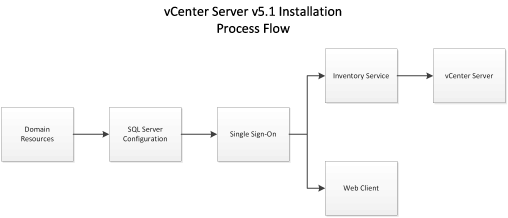
Process Flow


Service Ports

Chances are very good that you'll be challenged by the Windows Firewall. Make sure that it's either disabled, or the appropriate ports are opened.

SSO Administrator Credentials

The default user (admin@System-Domain) is not changeable at installation, and you'd better keep the password you set well-documented. This is required when installing other dependent services.

JDBC requires fixed ports

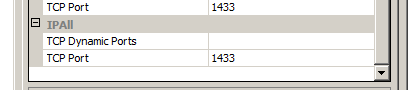
The SSO service uses the JDBC library for connectivity to Microsoft SQL. JDBC is ignorant of named instances, dynamic ports and the use of the SQL Browser or SSRP. Before trying to install SSO, you must go into the SQL Server Configuration Manager and configure a static port. If there's only one SQL instance on the host, you can use the default (1433), otherwise, pick something out of the air.
"Dynamic Ports" is blank; "TCP Port" is set to the static port you desire.
If you want to avoid restarting the instance that's already running, you can set the currently-used port as the static port. The server will go on using that port (which it chose dynamically) until it restarts; after that, it'll use the same port as a static port.

SSO requires SQL Authentication

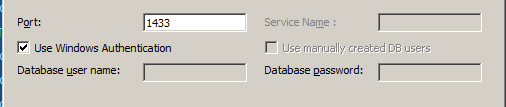
A good sign that SQL Auth is not enabled for the server.
Although the installer makes it look like you can install the services and use Windows Authentication, the service actually uses SQL Auth. This is also a side-effect of using JDBC libraries instead of native Windows ODBC or ADO libraries.
You can install with Windows Auth, but the service can't use it for DB logon.
If your database engine is not configured for SQL Auth, you'll need to talk to your DBAs—and possibly, your security officer(s)—to make it available. Changing the authentication from Windows to "Windows & SQL" may require restarting the instance; your DBAs will let you know when the job is completed.

Changes in 5.1.0a
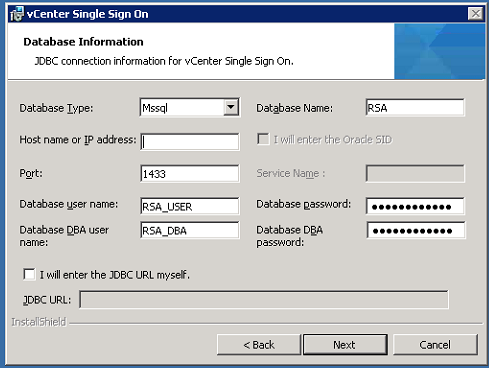
Looks like VMware took some information to heart on broken installs and modified the SSO install dialog for database connectivity:
JDBC Connection for 5.1.0a SSO Installation
It is no longer possible to install using Windows Authentication. You will need to have created the user & DBA accounts as SQL Auth; the quick/easy way to get it right is to use the CreateUser script in the same folder as the CreateTablespace script.

SSO Service is Java

Like other services in the vCenter suite, SSO is a Java executable. You will want to review the heap size settings to be sure that it's reserving enough space to be useful, but not so much that it's wasteful. The default is 1024MB and can be adjusted by editing the "wrapper.java.additional.9" value in SSOServer\conf\wrapper.conf
Original memory: 1024MB; Running memory: 384MB

Inventory Service Service is Java

Like other services in the vCenter suite, Inventory Service (IS) is a Java executable. Although the installer gives you three choices for the heap size settings, you might want to tweak that value a little to be sure that it's reserving enough space to be useful, but not so much that it's wasteful. The value can be adjusted by editing the "wrapper.java.maxmemory" value in Inventory Service\conf\wrapper.conf
Small memory model: 3072MB; Running memory: 384MB

vCenter Database

Create the 64-bit Server DSN for the vCenter Server database connection before you start the installation. In order to do that, you'll have to create a blank database, too, or you can't set the DSN to connect to the right database by default.

Another gotcha: Using the built-in DOMAIN\Administrator account could backfire on you. Recommended practice, naturally, is to use a service account; however, you've got to run the installer from the account you want for the services to run under if you also want to use Windows Auth. That requires either logging in as that user, or running the installer with the "runas" utility.

vCenter Server Service is Java

Like other services in the vCenter suite, vCenter Server is a Java executable. Although the installer gives you three choices for the heap size settings, you might want to tweak that value a little to be sure that it's reserving enough space to be useful, but not so much that it's wasteful. The value can be adjusted by editing the "wrapper.java.maxmemory" value in tomcat\conf\wrapper.conf
Small memory model: 1024MB; Running memory: 384MB

Thursday, August 9, 2012

Do-it-yourself SQL Agent replacement for vCenter

The fast/easy way to support VMware vCenter on Windows is to let the installer load SQL Express. By default, that's the SQL 2005 version of Express, and it has some limitations to it, like maximum database size (4GB), maximum RAM used (1GB) and maximum sockets utilized (1, but it'll use as many cores--real and hyperthreaded--as the socket provides). If you have a small datacenter being managed (5 hosts or less, 50 guests or less), those limits are probably not going to cause you pain.

The limit that usually causes the biggest problem is the database size limit; even that can be overcome by pre-installing the SQL 2008 or 2012 version of Express: the size limit is extended to 10GB.

But the one consistent limitation across all the versions of Express is the loss of the SQL Agent (MSDE is the predecessor to Express, and while it has Agent, it also is based on SQL 2000 and has a 1GB size limit; neither are acceptable for even the smallest vCenter deployments).

SQL Agent is the service that runs with the paid versions of SQL Server that provides, among other things, automation of scheduled jobs for the database engine.

By default, VMware simply ignores job scheduling when running on top of Express; the code is baked right into the SQL scripts for job creation. Supposedly, the vpxd will take care of those things, but in practice, I've discovered that it doesn't do the it with the same effectiveness as the SQL Agent jobs.

There is an alternative, however: use the Windows Task Scheduler.

As long as you have the proper command-line SQL client that can "talk" to your Express instance installed on your vCenter host, you can automate the jobs for yourself.

Take a look in c:\Program Files\VMware\Infrastructure\VirtualCenter Server for all the files named job_*_mssql.sql. Each of those represents a different scheduled task for the Agent-based SQL databases, and those scripts provide sufficient information to reproduce a scheduled task in Windows.

Here's what to look for:
set @JobNAME= : this is what you should name your task
@command = N'EXECUTE... ' : this is the query you're going to automate
@active_start_time= : this is the start time for the job, in HMMSS or HHMMSS format.
@freq_subday_type= : which type of repeat interval. 4 == minutes; 8 == hours
@freq_subday_interval= : indicates the repeat interval

For ease of reference, here's a handy-dandy table for the 5.0.0 version of vCenter:
Job Name Command Start Time Repeat Interval
Event Task Cleanup DBNAME EXEC cleanup_events_tasks_proc 1:30 AM Every 6 hours
Past Day stats rollup DBNAME EXEC stats_rollup1_proc 1:00 AM Every 30 minutes
Past Week stats rollup DBNAME EXEC stats_rollup2_proc 1:20 AM Every 2 hours
Past Month stats rollup DBNAME EXEC stats_rollup3_proc 1:00 AM Every 24 hours
Topn past day DBNAME EXEC rule_topn1_proc 1:15 AM Every 10 minutes
Topn past week DBNAME EXEC rule_topn2_proc 1:45 AM Every 30 minutes
Topn past month DBNAME EXEC rule_topn3_proc 1:35 AM Every 2 hours
Topn past year DBNAME EXEC rule_topn4_proc 1:55 AM Every 24 hours
Process Performance Data DBNAME EXEC process_performance_data_proc 1:00 AM Every 30 minutes
Property Bulletin Daily Update DBNAME
DELETE FROM VPX_PROPERTY_BULLETIN
WHERE EXISTS(
   SELECT 1 FROM VPX_PROPERTY_BULLETIN TMP 
   WHERE TMP.OBJECT_MOID=VPX_PROPERTY_BULLETIN.OBJECT_MOID
      AND TMP.OPERATION_TYPE=1
      AND TMP.GEN_NUMBER < (
         SELECT MAX(GEN_NUMBER) - 300000
         FROM VPX_PROPERTY_BULLETIN
      )
);
1:40 AM Every 24 hours

Depending on the version of SQL you have installed, you'll be using OSQL, ISQL or SQLCMD as your command-line client. All three, however, have the same arguments for the way we'll use it, so while I'm going to be providing the instructions using SQLCMD, you can substitute your choice with minimal effort.

The trick is to assemble your arguments for SQLCMD in the task definition, then schedule the task in the same intervals & timing as the Agent version.

In addition to the command, you'll need the following case-sensitive arguments:
-E or -U username -P password (I prefer to use -E, which passes in the Windows account token for the user the task runs under; keeps from making a SQL password from being visible)
-S server\instance
-d database
-Q "command text"

So the finished command line for the first entry (for me) in the table becomes:
SQLCMD.EXE -E -S localhost\VIM_SQLEXP -d VIM_VCDB -Q "EXEC cleanup_events_tasks_proc"

Once you have the command assembled in the "Run:" field for the task, you can then step through the scheduling tab and match the time & recurrence as noted above.

Finally, you can skip the heavy lifting all together (except for that last, long task, which exceeds the limits of the schtasks command) and use the following CMD script to send the whole thing into your system, substituting some of the variables with your specific needs:
@echo off
set CLI=C:\Program Files\Microsoft SQL Server\100\Tools\Binn\SQLCMD.EXE
set SVR=localhost\VIM_SQLEXP
set DB=VIM_VCDB
set USR=[domain\]username

schtasks /create /tn "Event Task Cleanup %DB%" /sc HOURLY /mo 6 /st 01:30 /ru "%USR%" /tr "\"%CLI%\" -E -S %SVR% -d %DB% -Q \"EXEC cleanup_events_tasks_proc\" "
schtasks /create /tn "Past Day stats rollup %DB%" /sc MINUTE /mo 30 /st 01:00 /ru "%USR%" /tr "\"%CLI%\" -E -S %SVR% -d %DB% -Q \"EXEC stats_rollup1_proc\" "
schtasks /create /tn "Past Week stats rollup %DB%" /sc HOURLY /mo 2 /st 01:20 /ru "%USR%" /tr "\"%CLI%\" -E -S %SVR% -d %DB% -Q \"EXEC stats_rollup2_proc\" "
schtasks /create /tn "Past Month stats rollup %DB%" /sc DAILY /st 01:00 /ru "%USR%" /tr "\"%CLI%\" -E -S %SVR% -d %DB% -Q \"EXEC stats_rollup3_proc\" "
schtasks /create /tn "Topn past day %DB%" /sc MINUTE /mo 10 /st 01:15 /ru "%USR%" /tr "\"%CLI%\" -E -S %SVR% -d %DB% -Q \"EXEC rule_topn1_proc\" "
schtasks /create /tn "Topn past week %DB%" /sc MINUTE /mo 30 /st 01:45 /ru "%USR%" /tr "\"%CLI%\" -E -S %SVR% -d %DB% -Q \"EXEC rule_topn2_proc\" "
schtasks /create /tn "Topn past month %DB%" /sc HOURLY /mo 2 /st 01:35 /ru "%USR%" /tr "\"%CLI%\" -E -S %SVR% -d %DB% -Q \"EXEC rule_topn3_proc\" "
schtasks /create /tn "Topn past year %DB%" /sc DAILY /st 01:55 /ru "%USR%" /tr "\"%CLI%\" -E -S %SVR% -d %DB% -Q \"EXEC rule_topn4_proc\" "
schtasks /create /tn "Process Performance Data  %DB%" /sc MINUTE /mo 30 /st 01:00 /ru "%USR%" /tr "\"%CLI%\" -E -S %SVR% -d %DB% -Q \"EXEC process_performance_data_proc\" "