Showing posts with label NetScaler. Show all posts

Monday, February 20, 2017

ADFS and SNI

SNI, or Server Name Indicator, is an extension to TLS (Transport Layer Security, the evolutionary child of SSL/Secure Socket Layer) that permits multiple certificates (and therefore encrypted sessions) to be bound to the same TCP port.

Starting with ADFS v3.0 (aka ADFS for Windows Server 2012R2), Microsoft uses SNI by default. On the whole, this has little impact on most users of ADFS, but for one small, important subset: users that sit behind reverse proxy or hardware SSL-offload devices.

Readers of this blog know that I use the Citrix NetScaler VPX Express as a reverse proxy for my home lab; until I tried to stand up an ADFS server (running Server 2016) behind it—I'm going to start digging into Office 365 in a serious way and want the most seamless user experience—I'd never had a problem with it.

I just could NOT figure out why the ADFS system was immediately rejecting connections via NetScaler, while it was perfectly happy with local connections.

I knew things were problematic as soon as I did packet captures on the NetScaler: the [SYN]-[SYN, ACK]-[Client Hello] were immediately followed by [RST, ACK] and a dropped connection.


Once I "fired up" a copy of Wireshark and pulled some captures at the ADFS host, however, I was able to compare the difference between the NetScaler-proxied connections that were failing, and on-prem connections that were successful.


At that point, I could explicitly compare the two different [Client Hello] packets and see if I could tell the difference between the two...

Unfortunately, I started with comparing the protocols, ciphers and hash algorithms. It took a while to get the TLS1.2 setup just right to mimic the local connection, but no joy. But then I went after the extensions: only one extension was in the "misbehaving" [Client Hello]
There are a bunch of extensions in the "working" [Client Hello]:
holy crap

To make my task easier, I switched back to google-fu to see if I could narrow down the search; voila!

I found an article that talked about handling ADFS clients that don't support the SNI extension, and the lightbulb went on: my browsers do SNI, but with the NetScaler acting as a proxy SNI support is disabled by default.

Luckily there are two fixes:
  1. Update the ADFS server with a "blanket" or "fallback" binding for the ADFS service (see https://blogs.technet.microsoft.com/applicationproxyblog/2014/06/19/how-to-support-non-sni-capable-clients-with-web-application-proxy-and-ad-fs-2012-r2/)
  2. Update the NetScaler service entry (in the SSL Parameters section) to support SNI for the expected client hostname.
I went with the latter; that way I don't modify any more of the ADFS host than necessary, and because the NetScaler is essentially acting as a client while it's doing its proxy duties, that seemed to make the most sense.

Within a minute of adding the SNI extension, the ADFS system worked as expected.

Wednesday, February 15, 2017

SSL Reverse Proxy using Citrix NetScaler VPX Express

Part 6 in a series

In previous posts I covered the configuration of the NetScaler VPX Express for use as an intelligent reverse proxy, allowing the use of a single public IP address with multiple interior hosts.

In recent days, I've been working on adding Horizon View to my home lab; in addition to requisite Connection Servers, I'm using the EUC Access Point virtual appliance as a security gateway instead of Security Servers paired with dedicated Connection Servers.

The procedure I outline for the creation of a content-switching configuration works as you'd expect...to a point.

I found that I kept getting "Tunnel reconnection is not permitted" errors when trying to login using the dedicated Horizon Client; this was extremely frustrating because HTML access (using nothing but an HTML5-compatible browser) was working flawlessly.

Upon reviewing the client logs, I noticed that the response from the tunnel connection (HTTP/1.1 404 Not Found) was from IIS, not a Linux or other non-Windows webserver. In my configuration, my content-switching plan uses a Windows IIS server as the fall-through (default/no-match).

Theory: for whatever reason, while the registration process for the Horizon Client was being properly switched to the Access Point, login via tunnel was not.

By capturing a trace (including SSL decoding) at the NetScaler and reviewing it in Wireshark, I was able to see that the client is using two different host strings, one during the initial login followed by a second one during tunnel creation.

What's the difference? The initial login doesn't include the port number in the host string; the tunnel request includes it...
Login: vdi.corp.com
Tunnel: vdi.corp.com:433
The fix is to add an additional match criteria for your content switching policy:
Before: HTTP.REQ.HOSTNAME.EQ("vdi.corp.com")
After: HTTP.REQ.HOSTNAME.EQ("vdi.corp.com")||HTTP.REQ.HOSTNAME.EQ("vdi.corp.com:443")
You can also create an additional policy with the "fqdn:443" match, but editing the policy was faster to implement.

UPDATE: I've done some more digging, and there are additional arguments/functions that would also work—and would've worked transparently had I used them in the first place—instead of the EQ("") expression:
HTTP.REQ.HOSTNAME.CONTAINS("vdi.corp.com")
HTTP.REQ.HOSTNAME.SERVER=="vdi.corp.com"
HTTP.REQ.HOSTNAME.STARTSWITH("vdi.corp.com")
HTTP.REQ.HOSTNAME.PREFIX('.',0).EQ("vdi")

Tuesday, February 10, 2015

Citrix NetScaler UI changes

Which is worse?

  • Searching for the solution to a problem and not being able to find it
— or —
  • Finding the exact solution to a problem in a blog, but discovering that it's an older post using out-dated products and documenting an API or UI that no longer exists?

This question comes from some feedback I received on a series of posts I put together that documents my use of the Citrix NetScaler VPX Express virtual appliance as a reverse proxy.

Citrix is doing the right thing: they're rebuilding the GUI in the NetScaler to eliminate Java (as much as possible). It has been a slow-going process, starting with the 10.0 version (as of this writing, 10.5 is current, and there are still one or two places that use a Java module), and one of the drawbacks is that the new HTML-only UI elements can't duplicate the Java UI—so things are...different.
HA Setup, v10.0 & earlier
HA Setup, v10.5
In the screencaps above, you see the older Java-based dialog box and the newer HTML page. They have some of the same data, but they are neither identical, nor are they found in the same exact place from the principal UI.

How does a blogger serve his/her audience? Does one ignore the past and soldier on, or does one revisit the old posts and update them for a new generation of software? If I had positioned myself as a NetScaler expert, that answer is obvious: UI changes in and of themselves would be post-worthy, and revisiting old functions to make them clear under the new UI would make perfect sense.

In this case, however, I have only had a couple of requests for revised instructions using the equivalent UI; I'm not a NetScaler guru, and to be perfectly frank, I haven't the time needed to redo the series. If I get a lot more feedback that this series needs to be updated, I'll think about a second edition using the new UI, but as of now it's going to stay the way it is.

Thursday, February 6, 2014

SSL Reverse Proxy using Citrix NetScaler VPX Express

Part 5 in a series

This part is the final post of the series; it builds on the previous posts by adding an SSL-based content switch on top of our previously-created simple HTTP content switch.

The NetScaler does a fine job of handling SSL traffic in a manner similar to the way it handles the unencrypted HTTP traffic. The key differentiator—other than making sure to distinguish the traffic as being SSL-bound—is the inclusion of certificate handling.

Of course, the "outside" or Content Switching virtual server must have an SSL certificate; the client trying to reach your host(s) is expecting an SSL connection, so the listener responding to the particular host request must respond with a conforming certificate or he/she will have to deal with certificate errors.

The "inside" server that's the target of Content Switching probably wants to communicate with its clients using SSL, too (In some special cases—known as "SSL Offload"—the inside server allows non-encrypted connections from specific hosts that are pre-configured to handle the overhead of SSL encryption; NetScaler can do this, too). In order for the NetScaler to perform as a proxy, it must have sets of SSL certificates for both the inside and the outside connections. Once you have those, you can quickly set up an SSL-based content switching configuration that mirrors the HTTP setup.

And the best part? Only the Content Switching virtual server needs to have an SSL certificate that is signed by a trusted root! (Caveat: it must be either a wildcard or multiple-SAN certificate. Remember: the DNS name must match either the CN [common name] or one of the DNS SAN [subject alternate name] entries of the host certificate) The "inside" servers that you're putting "behind" the NetScalers can have self-signed certificates or certificates signed by an in-house CA.


A little about Certificate files

The NetScaler has a ton of flexibility for working with many certificate formats—PEM and DER encoding, PKCS#12 bundles, etc.—but I find that it's easiest and most flexible when using individual, single-certificate (or key) PEM-type, Base64-encoded text files. It's easiest if you just have them ready-to-go; if you don't, you can learn about using OpenSSL, or you can simply use an online converter like SSL Shopper's Certificate Tools. Personally, I use a local copy of OpenSSL.

For the purpose of this tutorial, I'm going to assume you have all the certificates you need, already in PEM format.

SSL handling in the NetScaler

The SSL feature must be enabled to do any sort of SSL load balancing or proxy configuration; it is enabled in the same place that Load Balancing and Content Switching is enabled, off the System->Settings menu:

Preparing Certificates

Once that's enabled, the yellow warning symbol for the Traffic Management function disappears. The first step to managing certificates is to get certificate files uploaded to the NetScaler. Select the SSL option itself:

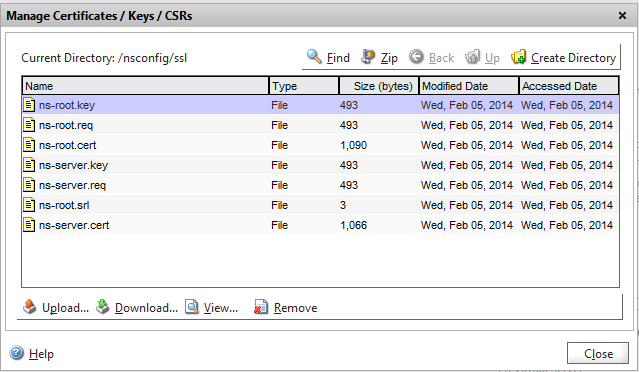
then "Manage Certificates / Keys /CSRs" in the Tools section of the right-hand column.
The dialog resembles a file management window because it essentially is: it's a tool that lets you upload certificate files to the NetScaler's certificate store. Click [Upload...] to load the certificate files on the NetScaler. You'll need both the certificate and its private key, plus any CA certificates—including intermediates—that were used in a signing chain.

Once you have your certificates loaded, close the file dialog and expand the SSL menu tree and select Certificates

Click [Install...]. This process both creates a configuration object that the NetScaler can use to bind certificates to interfaces, and it gives you the opportunity to link certificates together if they form a signing chain. Although you can also use this interface to perform the upload function, I find it works more consistently—especially when handling filenames—to upload in one step, then install.

The server certificate itself needs to be installed using both the certificate and its key file; signing CAs can be loaded with just the certificate file.

Once all the certificates in the chain are loaded, select the server certificate and click the [Action] dropdown, then the "Link..." option. 

If you've got a recognized file and the CA that signed the file is already installed, it will be pre-selected in the Link Certificate dialog. Click [OK].
Repeat with any other certificates in the chain, back to the CA root.


Creating the Content Switching Configuration

With minor exceptions, we'll follow the same process for creating a standard HTTP content-switching config. Specific differences will be highlighted using italic typeface.
  1. If they don't exist already, create your server entries. Because I'm building on the work previously documented, my servers are already present.
  2. Create SSL-based services for the servers; configure https as a monitor:
  3. Create SSL-based Load Balancing Virtual Servers
    1. Set the protocol to SSL
    2. Disable "Directly Addressable"
    3. Enable the SSL-based service
    4. Switch to the SSL Tab
    5. Highlight the server certificate and click [Add >] to bind the certificate to the server
  4. Create the new Content Switching policies. We can't use the previous ones—even if they're functionally identical—because we're going to use them on a different CS Virtual Server.
  5. Create (or modify) an SSL-based Content Switching Virtual Server
    1. Set the protocol to SSL
    2. Set the IP address for the virtual server. It can be the same address as the HTTP virtual server.
    3. Insert policies and set targets to SSL-based targets
    4. Switch to the SSL Tab
    5. Highlight the server certificate and click [Add >] to bind the certificate to the server
    6. Highlight the next CA cert in the signing chain; click the drop-down arrow on the [Add >] button and select [as CA >] to add the signing cert.
    7. Repeat step 5 for all remaining certificates in the signing chain.
    8. Click [Create] when complete.
As soon as the configuration is "settled" in the innards of the NetScaler, the "State" should indicate that it is "Up" and you can again test using your HOSTS file. Note: you may still get a certificate error if your URL doesn't match the name in the certificate bound to the Content Switching virtual server (eg, a short name will not properly resolve against a domain wildcard certificate).

Parts in this series:

HTTP Reverse Proxy using Citrix NetScaler VPX Express

Part 4 in a series

So far: the first three parts of this series dealt with the introduction of a problem (multiple servers behind a NAT firewall that use the same port) and solution (Citrix NetScaler VPX Express); laying the groundwork for configuring the solution; an overview of what we'll be configuring.

Because it is possible to set up content switching with a single host (the degenerate case), this is the method we'll begin with. While it doesn't really do much for us, simply repeating the steps for a second (and subsequent) will result in a working solution. Other guides lay down the steps with two hosts already in mind, and teasing apart the pieces to apply it to your situation might be more difficult.

Groundwork

Some planning must be done prior to doing this setup. The first is a set of IP addresses that you'll need to have handy. This post will use the following addresses; substitute them with your own:
HostIP
CS Virtual Server192.168.106.37
Target Server A192.168.106.38
Target Server B192.168.106.39

Enable Features

The bare-bones install of the NetScaler has a number of features enabled, but the ones we need for content switching are disabled. Open the System configuration tree and select Settings

Select "Configure basic features" and make sure the following features are enabled (checked):
  • Load Balancing
  • Content Switching
If you selected "Traffic Management" in the left menu before and after enabling the feature, this is what you'd see:
Default, features disabled
LB and CS enabled
Begin the setup by expanding "Load Balancing" under "Traffic Management" and select "Servers":

In the center section, click [Add...] and create the server. The "Server Name" is an identifier used in the NetScaler; it does NOT have to be the FQDN or short name for the server.


Then switch to the Services option

and create a protocol-specific entry for the server, including a monitor
(I like to use http because it doesn't require any customization; a custom http-ecv monitor can be created to check for the explicit function of the target server, but that's beyond the scope of this series).

I also recommend using a naming convention that includes the type of object you're creating ('svc' for the service) and the protocol it's tied to ('http'); that will make it more obvious where a given object comes from when you see them bound in other places.

Switch to the Virtual Servers menu


and click [Add...] to build the virtual server.

Make sure you uncheck the "Directly Addressable" option; this eliminates the need to give the virtual server its own address (we want to give an address to the Content Switching virtual server) and select the service we just created.

Switch to the Content Switching menu and select "Policies"


Click [Add...] to create a policy to trigger sending the traffic based on the hostname used in the HTTP header.

Select the Virtual Servers option under Content Switching

and click [Add..] to create a new virtual server.
This server gets the IP address to which we'll be forwarding traffic.

Click "Insert Policy" to insert a new policy

Select the new policy from the drop-down, then pull down the list of targets, selecting the new load balancing server. You will get a warning about the "Goto Expression"

Select [Yes], then [Create] to make the server.

At this point, your setup should function for the first server you configured!

Now: go back to the step for creating the outside server and repeat except for creating a new Content Switching server.


Now: Open the existing server

and add another policy, using the new server's policy and LB virtual server entry:


You can test this internally by either updating your DNS server entries or adding a line to your machine's HOSTS file:
192.168.106.37 serverA serverB

Point your browser at http://serverA after you make the change, and voila!, you get to the target. Switch to http://serverB, and you get that target instead.

Once you've verified the functionality from the inside, update the forwarding on your NAT firewall and test using an outside address (eg, use a cell phone that's not on your home WiFi).

Parts in this series: