Showing posts with label vSphere. Show all posts

Thursday, September 19, 2019

New VM cleanup

When creating a new VM in vSphere, you get a number of virtual devices & settings by default that you probably don't have any interest in keeping:

  • Floppy drive (depending on version & type of client in use)
  • Floppy adapter
  • IDE ports
  • Serial ports
  • Parallel ports
Given that some of these are redundant (why keep the IDE adapter when you're using SATA for the optical device?) while others are polled I/O in Windows (OS must keep checking to see if there's activity on the port, even if there will never be any), it just makes things more streamlined if you cleanup these settings when creating a new VM...then using the cleaned-up VM as a template for creating new VMs later on.

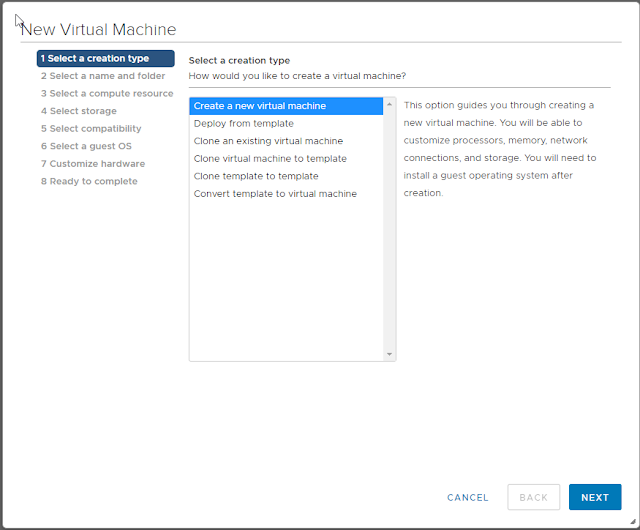
Step 1: create a new VM
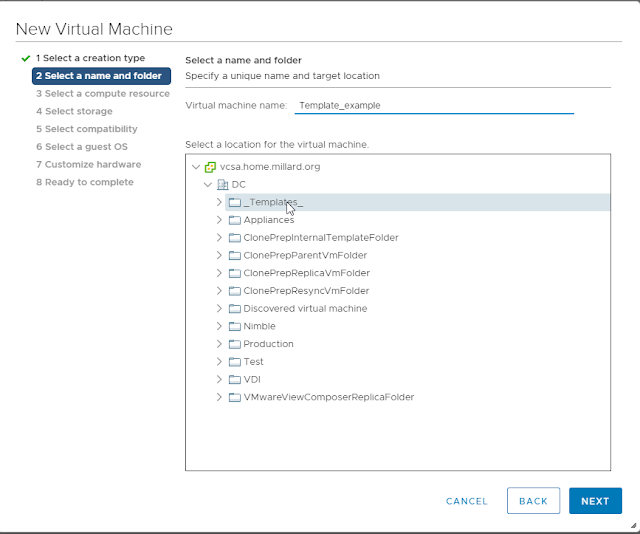
Step 2: Set VM name and select a location
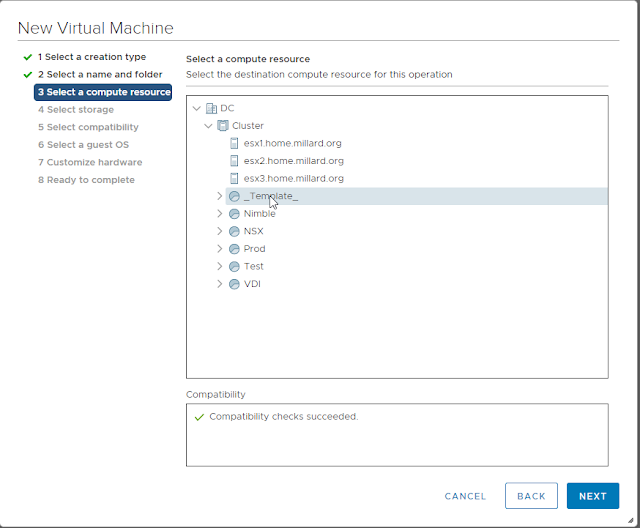
Step 3: Select a compute resource
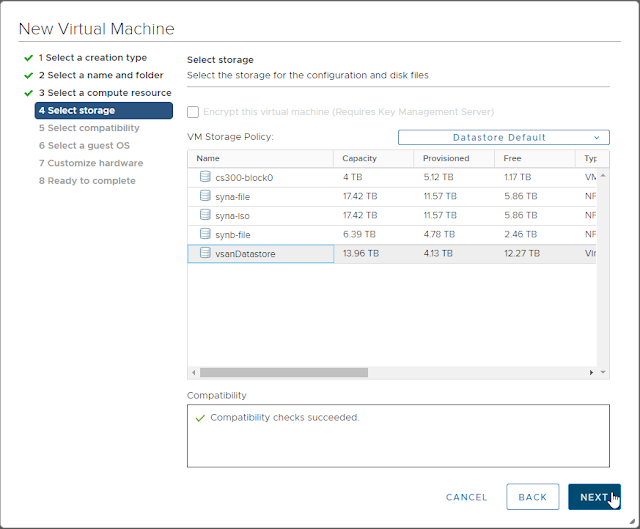
Step 4: Select storage
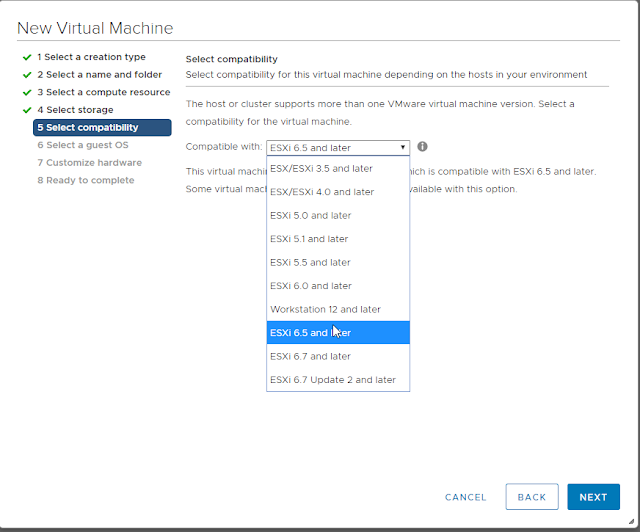
Step 5: Set compatibility no higher than your oldest version of ESXi that the template could be deployed on.
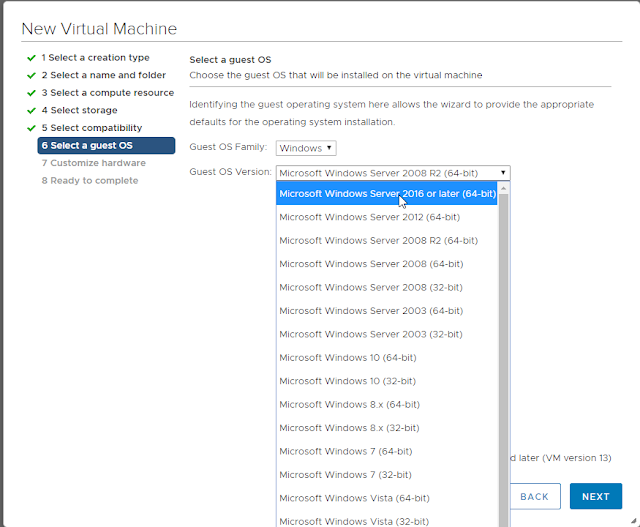
Step 6: Select the guest OS you'll install
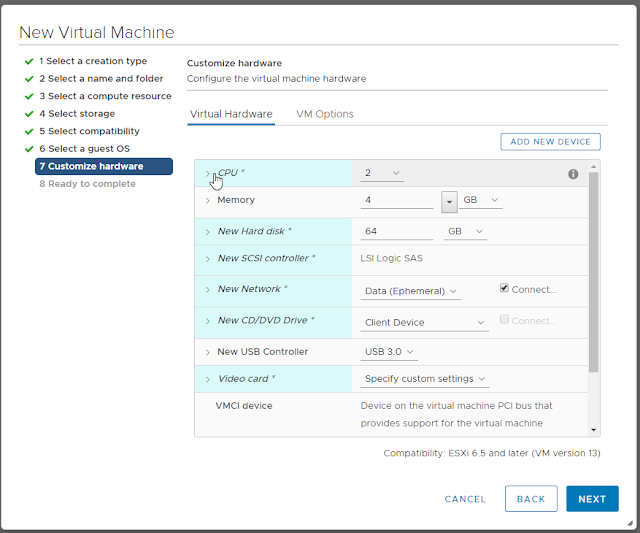
Step 7a: Customize hardware: CPU, Memory, Hard Drive
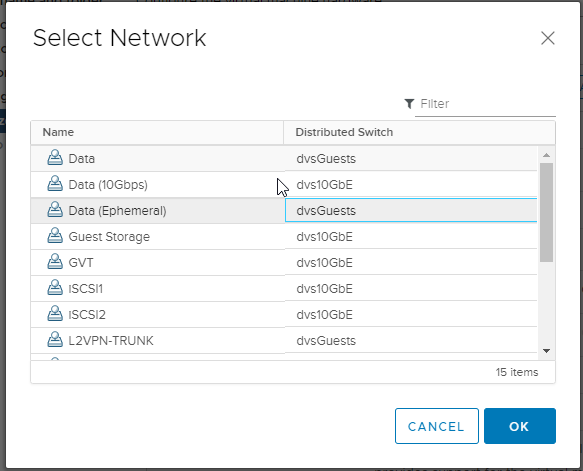
Step 7b: Attach NIC to a general-purpose or remediation network port
Step 7c: Don't forget to change the NIC type! If you don't the only way to change it later is to remove & re-add the correct type, which will also change the MAC address and, depending on the order you do the modifications, could put the new virtual NIC into a different virtual PCIe slot on the VM hardware, upsetting other configurations in the guest (like static IP addresses).
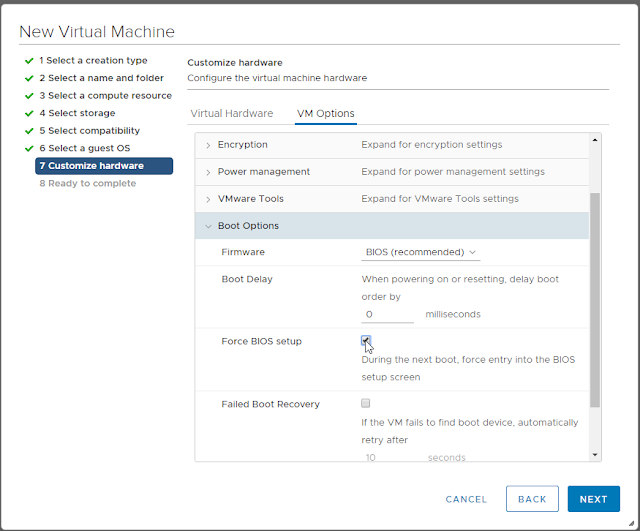
Step 7d: Jump to the Options tab and set "Force BIOS setup"
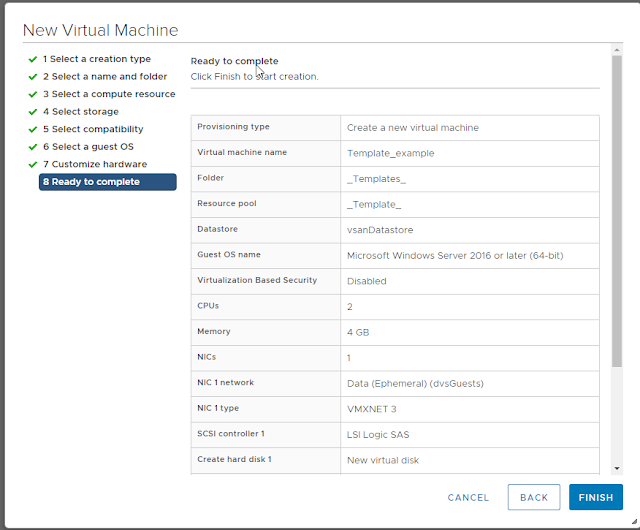
Step 8: Finish creating the VM
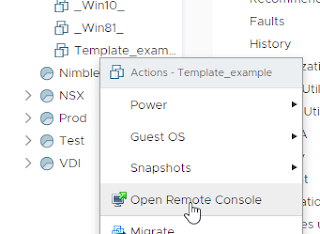
Step 9: Open remote console for VM
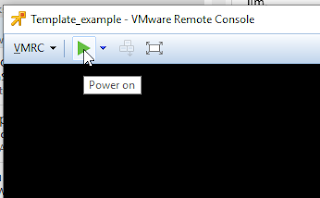
Step 10: Power On the VM. IT should pause at the BIOS editor screen.
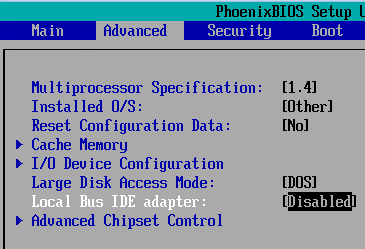
Step 11: On the Advanced page, set Local Bus IDE to "Disabled" if using SATA; set it to "Secondary" if using IDE CD-ROM (Even better: Change the CD-ROM device to IDE 0:0 and set it to "Primary").
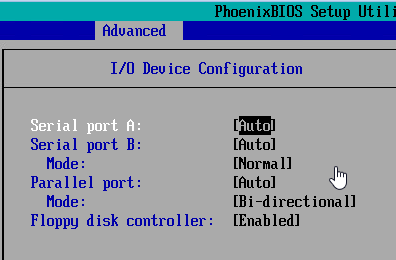
Step 12: Descend into the "I/O Device Configuration" sub-page; by default, it'll look like the screenshot below:
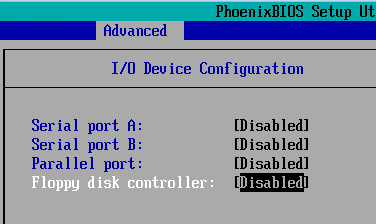
Step 13: Using the arrow keys & space bar, set each device to "Disabled", then [Esc] to return to the Advanced menu.
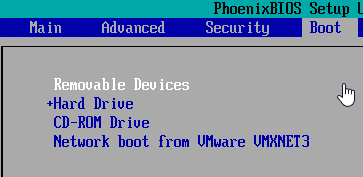
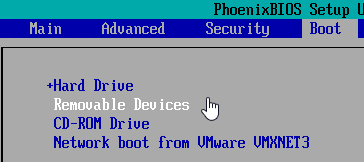
Step 14: Switch to the Boot page. By default, removable devices are first in the boot order.
Step 15: Use the minus [-] key to lower the priority of removable devices. This won't hurt the initial OS setup, even on setup ISOs that normally require a key-press to boot off optical/ISO media: the new VM's hard drive has no partition table or MBR, so it'll be skipped as a boot device even when it's first. Once the OS is installed, you'll never have to worry about a removable media causing a reboot to stall.
Step 16: Press [F10] to save the BIOS config, then use the console to attach to an ISO (local or on a datastore) before exiting the BIOS setup page.


Step 17: Install the guest OS, then add VMware Tools. Perform any additional customization—e.g., patching, updates, and generalization—then convert the new VM to a template.

You're set! No more useless devices in your guest that take cycles from the OS or hypervisor.

Additional Note on modifying existing VMs:
Aside from the need to power down existing VMs that you might want to clean up with this same procedure, the only issue I've run into after doing the device + BIOS cleanup is making sure I get the right combination of IDE channels & IDE CD-ROM attachment. The number of times I've set "Primary" in BIOS but forgot to change the CD-ROM to IDE 0:0 is ... significant.

Additional Note on Floppy Drives:
Floppy drive handling is a special case, and will very much depend on which version of vSphere—and therefore, the management client—you're using. If you have the "Flex" client (or are still using v6.0 and have the C# client), the new VM will have a floppy disk device added by default. Naturally, you want to remove it as part of your Hardware Customization step during new VM deployment.
If you're happily using the HTML5 Web Client, you may find that the floppy is neither present, nor manageable (for adding/removing or attaching media)... This is the 0.1% of feature parity that I still find lacking in the H5 client. Hopefully, it'll get added, if for no better reason than to allow an admin to remove floppy devices that are still part of VMs that were created in older versions.

Thursday, October 13, 2016

Adding floppy for PVSCSI drivers when creating a VM in vCenter Web Client

Someone asked in a private slack channel if it was "just him" or can you really not add a floppy image when creating a VM using the Web Client. This is relevant any time you want to build a VM using the PVSCSI drivers so they'll always be available, even if VMware Tools is uninstalled.
The answer—at least with v6.0U2—is "no."
In this scenario, the vmimages folder won't expand; it offers the "arrowhead" showing there is content to be discovered within, but when you select it, you get no content...

Fortunately, there's a workaround: if you go ahead and save the new VM (without powering on) and then edit it, modifying the source for the floppy image, the vmimages folder will correctly expand and populate, allowing you to select one.

UPDATE: It turns out we were talking about two different Web Clients! My assumption was that we were referring to the vCenter Web Client, while the person asking was referring to the new(ish) Host Web Client.

The defect and workaround as I've documented it only apply to the vCenter Web Client. The Host Web Client will not behave correctly even in the workaround; this is a solid defect. There are other workarounds—use the C# client, copy the IMG file to an accessible datastore, etc.—but none are as good as the defect being eliminated in the first place.

Thursday, July 14, 2011

VMware vSphere 5 Licensing—it's not all about vRAM

With the announcement of features and new licensing model for VMware vSphere 5 during a live+webcast presentation, much of the ensuing kerfuffle was aimed at the new licensing model, rather than excitement over the new features. I have to admit, I'm one of those folks who aren't happy with the licensing changes; to be fair, I haven't been happy with the licensing moves VMware has been making since the introduction of "Enterprise Plus."

I understand and can accept the rationale from VMware, including the way the vRAM pooling is supposed to work. I'm also the first to admit that I've got a bias in favor of VMware: I am one of the leaders of the Kansas City VMware User Group in addition to being a long-time customer.

No, my concern is the way VMware keeps tying specific "entitlements" (their term) to the various Editions of vSphere. In this case, I'm not just thinking of the vRAM entitlement—the piece that's generating all the outrage—but the features that are available accross editions.

VMware's licensing whitepaper gives a nice overview of the new model, as well as some examples of how the new model could work in practice, paying particular attention to the vRAM portion. My opinion is that VMware pays short shrift to the other, non-vRAM details that distinguish the different Editions of vSphere.
On the vRAM side: If you have a small cluster of 2-socket hosts with modest amounts of physical RAM (e.g., 96GB/host), you will be unimpacted by the new license model if you're already on Enterprise Plus (2 sockets x 48GB vRAM= 96GB); in this scenario—assuming you have current service-and-support contracts—you'll upgrade straight to the vSphere 5 Enterprise Plus licenses and be "off to the races." Your physical RAM won't ever exceed your entitlement, and if you're over-subscribing your guest memory, you're begging more problems than vRAM entitlements, because it also means you've not left yourself any wiggle-room for N+1 availability. In fact, if you're in that situation, you may have over bought from a vRAM perspective: A 5-host cluster with 10 sockets of Enterprise Plus has a pool of 480GB vRAM. If all those hosts have 96GB physical RAM, your N+1 memory allocation shouldn't exceed 384GB, so you wouldn't need a vRAM pool bigger than 384GB. You can't quite achieve that with 10 sockets of Enterprise (which has a 32-GB entitlement), but you can do it with 12 sockets, which is a tiny bit less expensive (list price) than 10 sockets of Enterprise Plus ($34,500 vs $34,950). Of course, that assumes you're pushing the limits of your physical hardware and not obeying the 80% rule. In that case, you could get away with 10 seats of Enterprise and save a pretty big chunk of cash.

My suggestion to VMware: consider two changes to the licensing model with respect to vRAM entitlements. 1) allow vRAM pooling across editions, rather than keeping it edition-specific. 2) create vRAM "adder licenses" so that organizations can add blocks of vRAM to their pools (without paying for all the additional features of a full processor license at any given edition). Doing both eliminates the need for different SKUs for editions as well as vRAM increments.

Back to the 5-host cluster example...

The problem with going the route of choosing Enterprise over Enterprise Plus just to manage the vRAM pool—and I'm certain that VMware has all this in mind—is that you must give up some pretty cool vSphere features (e.g., host profiles, dvSwitch) if you aren't on Enterprise Plus, including some new features in vSphere 5 (e.g., storage DRS). These features of vSphere make a lot of sense for smaller enterprises that have to watch every single dollar spent on IT, especially when shared storage (which, in my opinion, is the one thing that really makes virtualization sing) is probably the single most expensive item in a virtualization project.
In this case, I'd like to see VMware push some of these more interesting new features down the Edition stack. In general, anything that helps the business better utilize their (typically) very expensive storage investment makes sense. If VMware keeps the storage features at the most expensive end of the spectrum, organizations may be more inclined to consider alternatives for their perceived value rather than paying the premium for Enterprise Plus, especially now that there's the added burden of vRAM entitlements to consider.