Okay, the word is out. I can karaoke, and you don't have to get me drunk to do it.
I was at an industry conference for work, and the closing-night party was at a local micro-brewery. The bar had a nice selection of yummy beers, and they did a stand-up job in the kitchen. The half-dozen pool tables were busy with attendees, but the big draw for the private party, however, was the karaoke machine. While I was late to that part of the party—the weather outside was uncommonly nice for early August—I jumped right in to support the fun of the other attendees.
If you've never done karaoke, you should give it a try. If you have, you know that it's most fun when you get a whole group of folks—like a chorus—to perform songs that everyone will join in for.
But once you get warmed up, it's also energizing and exhilarating to find a song you know fairly well and can perform by yourself. I found She Caught the Katy by the Blues Brothers in the catalog, and did that one solo; I had a couple of dropped phrases—it's been a while since I listened to that song with any regularity—but on the whole, it was well-received.
And that kicked off a spate of other group songs where I was drafted to lead the chorus.
It was a lot of fun, and my previous theatre and voice training meant that I didn't lose my voice the next day even though most of the stuff we sang was a bit high for my natural range. I had my ego stroked a bit by all the compliments—which were very gratifying—but I also know that I'm gifted more with courage than musicality, so there won't be any "American Idol" auditions in the works.

Dribs and drabs of stuff that others might find useful, too.
Wednesday, August 10, 2011


Thursday, July 14, 2011
VMware vSphere 5 Licensing—it's not all about vRAM
With the announcement of features and new licensing model for VMware vSphere 5 during a live+webcast presentation, much of the ensuing kerfuffle was aimed at the new licensing model, rather than excitement over the new features. I have to admit, I'm one of those folks who aren't happy with the licensing changes; to be fair, I haven't been happy with the licensing moves VMware has been making since the introduction of "Enterprise Plus."
I understand and can accept the rationale from VMware, including the way the vRAM pooling is supposed to work. I'm also the first to admit that I've got a bias in favor of VMware: I am one of the leaders of the Kansas City VMware User Group in addition to being a long-time customer.
No, my concern is the way VMware keeps tying specific "entitlements" (their term) to the various Editions of vSphere. In this case, I'm not just thinking of the vRAM entitlement—the piece that's generating all the outrage—but the features that are available accross editions.
VMware's licensing whitepaper gives a nice overview of the new model, as well as some examples of how the new model could work in practice, paying particular attention to the vRAM portion. My opinion is that VMware pays short shrift to the other, non-vRAM details that distinguish the different Editions of vSphere.
On the vRAM side: If you have a small cluster of 2-socket hosts with modest amounts of physical RAM (e.g., 96GB/host), you will be unimpacted by the new license model if you're already on Enterprise Plus (2 sockets x 48GB vRAM= 96GB); in this scenario—assuming you have current service-and-support contracts—you'll upgrade straight to the vSphere 5 Enterprise Plus licenses and be "off to the races." Your physical RAM won't ever exceed your entitlement, and if you're over-subscribing your guest memory, you're begging more problems than vRAM entitlements, because it also means you've not left yourself any wiggle-room for N+1 availability. In fact, if you're in that situation, you may have over bought from a vRAM perspective: A 5-host cluster with 10 sockets of Enterprise Plus has a pool of 480GB vRAM. If all those hosts have 96GB physical RAM, your N+1 memory allocation shouldn't exceed 384GB, so you wouldn't need a vRAM pool bigger than 384GB. You can't quite achieve that with 10 sockets of Enterprise (which has a 32-GB entitlement), but you can do it with 12 sockets, which is a tiny bit less expensive (list price) than 10 sockets of Enterprise Plus ($34,500 vs $34,950). Of course, that assumes you're pushing the limits of your physical hardware and not obeying the 80% rule. In that case, you could get away with 10 seats of Enterprise and save a pretty big chunk of cash.
My suggestion to VMware: consider two changes to the licensing model with respect to vRAM entitlements. 1) allow vRAM pooling across editions, rather than keeping it edition-specific. 2) create vRAM "adder licenses" so that organizations can add blocks of vRAM to their pools (without paying for all the additional features of a full processor license at any given edition). Doing both eliminates the need for different SKUs for editions as well as vRAM increments.
Back to the 5-host cluster example...
The problem with going the route of choosing Enterprise over Enterprise Plus just to manage the vRAM pool—and I'm certain that VMware has all this in mind—is that you must give up some pretty cool vSphere features (e.g., host profiles, dvSwitch) if you aren't on Enterprise Plus, including some new features in vSphere 5 (e.g., storage DRS). These features of vSphere make a lot of sense for smaller enterprises that have to watch every single dollar spent on IT, especially when shared storage (which, in my opinion, is the one thing that really makes virtualization sing) is probably the single most expensive item in a virtualization project.
In this case, I'd like to see VMware push some of these more interesting new features down the Edition stack. In general, anything that helps the business better utilize their (typically) very expensive storage investment makes sense. If VMware keeps the storage features at the most expensive end of the spectrum, organizations may be more inclined to consider alternatives for their perceived value rather than paying the premium for Enterprise Plus, especially now that there's the added burden of vRAM entitlements to consider.
I understand and can accept the rationale from VMware, including the way the vRAM pooling is supposed to work. I'm also the first to admit that I've got a bias in favor of VMware: I am one of the leaders of the Kansas City VMware User Group in addition to being a long-time customer.
No, my concern is the way VMware keeps tying specific "entitlements" (their term) to the various Editions of vSphere. In this case, I'm not just thinking of the vRAM entitlement—the piece that's generating all the outrage—but the features that are available accross editions.
VMware's licensing whitepaper gives a nice overview of the new model, as well as some examples of how the new model could work in practice, paying particular attention to the vRAM portion. My opinion is that VMware pays short shrift to the other, non-vRAM details that distinguish the different Editions of vSphere.
On the vRAM side: If you have a small cluster of 2-socket hosts with modest amounts of physical RAM (e.g., 96GB/host), you will be unimpacted by the new license model if you're already on Enterprise Plus (2 sockets x 48GB vRAM= 96GB); in this scenario—assuming you have current service-and-support contracts—you'll upgrade straight to the vSphere 5 Enterprise Plus licenses and be "off to the races." Your physical RAM won't ever exceed your entitlement, and if you're over-subscribing your guest memory, you're begging more problems than vRAM entitlements, because it also means you've not left yourself any wiggle-room for N+1 availability. In fact, if you're in that situation, you may have over bought from a vRAM perspective: A 5-host cluster with 10 sockets of Enterprise Plus has a pool of 480GB vRAM. If all those hosts have 96GB physical RAM, your N+1 memory allocation shouldn't exceed 384GB, so you wouldn't need a vRAM pool bigger than 384GB. You can't quite achieve that with 10 sockets of Enterprise (which has a 32-GB entitlement), but you can do it with 12 sockets, which is a tiny bit less expensive (list price) than 10 sockets of Enterprise Plus ($34,500 vs $34,950). Of course, that assumes you're pushing the limits of your physical hardware and not obeying the 80% rule. In that case, you could get away with 10 seats of Enterprise and save a pretty big chunk of cash.
My suggestion to VMware: consider two changes to the licensing model with respect to vRAM entitlements. 1) allow vRAM pooling across editions, rather than keeping it edition-specific. 2) create vRAM "adder licenses" so that organizations can add blocks of vRAM to their pools (without paying for all the additional features of a full processor license at any given edition). Doing both eliminates the need for different SKUs for editions as well as vRAM increments.
Back to the 5-host cluster example...
The problem with going the route of choosing Enterprise over Enterprise Plus just to manage the vRAM pool—and I'm certain that VMware has all this in mind—is that you must give up some pretty cool vSphere features (e.g., host profiles, dvSwitch) if you aren't on Enterprise Plus, including some new features in vSphere 5 (e.g., storage DRS). These features of vSphere make a lot of sense for smaller enterprises that have to watch every single dollar spent on IT, especially when shared storage (which, in my opinion, is the one thing that really makes virtualization sing) is probably the single most expensive item in a virtualization project.
In this case, I'd like to see VMware push some of these more interesting new features down the Edition stack. In general, anything that helps the business better utilize their (typically) very expensive storage investment makes sense. If VMware keeps the storage features at the most expensive end of the spectrum, organizations may be more inclined to consider alternatives for their perceived value rather than paying the premium for Enterprise Plus, especially now that there's the added burden of vRAM entitlements to consider.
Tuesday, July 5, 2011
iPhone Battery Life: use it or lose it?
I think most iPhone users have discovered that their little "magical" friend has a propensity for chewing through battery life like high-schoolers chew through Doritos. Tips and tricks for extending life abound, but all the ones I've read amount to disabling functionality of the phone or applications.
I accept that keeping the GPS receiver on at all times will be a big drain; there isn't a lot of value of keeping it on when I spend the majority of my day inside and away from windows that could allow reception.
No, the things I don't want to disable are important functions to me. Things like push messaging; that's why I have a smartphone in the first place: to stay in touch and have messages at my fingertips.
So I husband my battery use, and most days am lucky to get through it with at least 30% still showing in the indicator.
But over the holiday weekend, I noticed something: I was regularly staying above 50% by the end of the day. Curious. I wasn't using it any less; if anything, I was on it more, taking pictures, checking social media, etc. What was the big difference?
I think I found it, and you may find it a surprise...
I use Bluetooth (BT) for in-car hands-free and for my Sony-Ericson HBH-IS800 headset. I normally leave the BT radio enabled so the phone automatically connects with the car; the way Apple buried the BT controls in the Settings app is pretty annoying for quick or frequent BT enable and disable, so I take the lazy way and leave it on. And I normally leave the HBH turned off to retain battery life, so the normal state for the iPhone is Bluetooth On/Unpaired.
And that seems to be a huge battery drain; an even bigger drain than having a paired device connected to it.
Here's what happened: this weekend, I kept my phone in my pocket, but didn't keep the HBH with me; I left it plugged into its charger until time came that I might want to use it. I noticed at one point during the day that my phone was paired up with it, however; I didn't realize it could/would do that while charging. I also noticed that the phone wasn't chewing through the battery like usual. So I did a qualitative experiment: One day, I would keep the phone paired with my HBH at all times; the next day I'd keep it un-paired, as usual; and the final day, I'd actively enable and disable the BT radio whenever I actually needed it.
Again; this was qualitative, not quantitative: there are too many other variables at play to put real numbers to it. However, by the end of the experiment, I was convinced: If you want to extend battery life without turning off the BT radio (by far, the best choice), make sure it's paired.
As I understand it, it goes a bit like this: the preferred state for the device—when BT is enabled—is to be paired. With anything. If it's unpaired, the radio throws extra power into trying to see if one of its partners are "out there" trying to reach it. When it's paired—and able to readily "stay in touch" with the partner—the radio draws less power than when it's "seeking."
Rule of thumb: when it comes to BT power consumption, radio off < radio paired < radio seeking
I accept that keeping the GPS receiver on at all times will be a big drain; there isn't a lot of value of keeping it on when I spend the majority of my day inside and away from windows that could allow reception.
No, the things I don't want to disable are important functions to me. Things like push messaging; that's why I have a smartphone in the first place: to stay in touch and have messages at my fingertips.
So I husband my battery use, and most days am lucky to get through it with at least 30% still showing in the indicator.
But over the holiday weekend, I noticed something: I was regularly staying above 50% by the end of the day. Curious. I wasn't using it any less; if anything, I was on it more, taking pictures, checking social media, etc. What was the big difference?
I think I found it, and you may find it a surprise...
I use Bluetooth (BT) for in-car hands-free and for my Sony-Ericson HBH-IS800 headset. I normally leave the BT radio enabled so the phone automatically connects with the car; the way Apple buried the BT controls in the Settings app is pretty annoying for quick or frequent BT enable and disable, so I take the lazy way and leave it on. And I normally leave the HBH turned off to retain battery life, so the normal state for the iPhone is Bluetooth On/Unpaired.
And that seems to be a huge battery drain; an even bigger drain than having a paired device connected to it.
Here's what happened: this weekend, I kept my phone in my pocket, but didn't keep the HBH with me; I left it plugged into its charger until time came that I might want to use it. I noticed at one point during the day that my phone was paired up with it, however; I didn't realize it could/would do that while charging. I also noticed that the phone wasn't chewing through the battery like usual. So I did a qualitative experiment: One day, I would keep the phone paired with my HBH at all times; the next day I'd keep it un-paired, as usual; and the final day, I'd actively enable and disable the BT radio whenever I actually needed it.
Again; this was qualitative, not quantitative: there are too many other variables at play to put real numbers to it. However, by the end of the experiment, I was convinced: If you want to extend battery life without turning off the BT radio (by far, the best choice), make sure it's paired.
As I understand it, it goes a bit like this: the preferred state for the device—when BT is enabled—is to be paired. With anything. If it's unpaired, the radio throws extra power into trying to see if one of its partners are "out there" trying to reach it. When it's paired—and able to readily "stay in touch" with the partner—the radio draws less power than when it's "seeking."
Rule of thumb: when it comes to BT power consumption, radio off < radio paired < radio seeking
Friday, July 1, 2011
VMware vExpert 2011

While I like to think I'm a bit of an expert when it comes to VMware, the award is really a recognition of the work I've done to promote VMware—and virtualization in general—through my volunteer work on the leadership team of the Kansas City VMware User Group (kcvmug).
It's been great to be a part of the team that helped grow our VMUG from a couple dozen regular attendees to a group that regularly sees 80+ members at "regular" meetings and 400+ attendees at our annual all-day "regional" meeting.
My thanks go out to VMware for supporting the program, John Troyer for his "above and beyond" efforts to launch and add value to the program over the years, and his anonymous team of judges for giving me the nod. But most of all, I want to thank my fellow kcvmug leaders, past (Kevin Davidson, Ron Armstrong, Ryan Melton, Joe Adams) and present (Ben Clayton, Tony Lux); without you, the VMUG wouldn't be what it is today.
Sunday, June 19, 2011
SQL Server Failover Cluster -- Add-a-node gotcha
This isn't the sort of thing someone does all the time, so you're bound to be surprised by one thing or another...
We run instances of Microsoft SQL Server 2005 on hardware failover clusters (I'd love to run them all on VMware, but there are a number of reasons why we don't.). We had an occasion to replace the hardware for the nodes, and an associate & I were trying to get this accomplished.
Putting the 2 new nodes into the cluster was smooth as butter. That left me with a 5-node cluster (we were going to ultimately evict the older 3 nodes), and I set forth to add the new nodes to the first SQL instance on my list.
But I kept getting stopped by the "remote task will not start" error. I googled for a solution, and kept coming up with remote access issues: in essence, make sure you aren't using Remote Desktop to connect to the new passive node. I wasn't using RDP on any of the nodes, so I couldn't understand why it kept failing. Just about every combination of reboots and node selection was attempted. I made sure I was logged out from the new nodes. Still, no joy.
In final desperation, I logged out of all the nodes, not just the ones I was adding, then logged back in to the instance's active node and ran the setup from there. Voila! I was able to add a new node to the instance. For whatever strange reason, you cannot be logged into ANY of the nodes other than the one from which you're installing. Period. Not using RDP like they document, but also not using VNC or even the actual system console. NONE.
We run instances of Microsoft SQL Server 2005 on hardware failover clusters (I'd love to run them all on VMware, but there are a number of reasons why we don't.). We had an occasion to replace the hardware for the nodes, and an associate & I were trying to get this accomplished.
Putting the 2 new nodes into the cluster was smooth as butter. That left me with a 5-node cluster (we were going to ultimately evict the older 3 nodes), and I set forth to add the new nodes to the first SQL instance on my list.
But I kept getting stopped by the "remote task will not start" error. I googled for a solution, and kept coming up with remote access issues: in essence, make sure you aren't using Remote Desktop to connect to the new passive node. I wasn't using RDP on any of the nodes, so I couldn't understand why it kept failing. Just about every combination of reboots and node selection was attempted. I made sure I was logged out from the new nodes. Still, no joy.
In final desperation, I logged out of all the nodes, not just the ones I was adding, then logged back in to the instance's active node and ran the setup from there. Voila! I was able to add a new node to the instance. For whatever strange reason, you cannot be logged into ANY of the nodes other than the one from which you're installing. Period. Not using RDP like they document, but also not using VNC or even the actual system console. NONE.
Sunday, May 29, 2011
Carrier shenanigans
I'm writing this post while visiting my in-laws in southern Missouri. They live in a rural area on a 100+ acre farm abutting the National Forest. It's a beautiful part of the state, but because they're over 10 miles from the nearest town with "real" Internet options, the only options they have is dial-up, spotty cellular and HughesNet residential satellite. It's true that they could "pony up" (big time) and pay for infrastructure to get cable or T.1—DSL is just plain not an option—so they're pretty much stuck with three bad choices for today's media-rich Internet.
After doing much research, they went with HughesNet. On the surface, it looks like a pretty good option: near-T.1 speeds for some capital (dish & receiver aren't included) and $40/mo.

If you check out their website yourself, you'll note, however, that they have an item called a "download allowance" that is even worse than the bandwidth caps being instituted by the "terrestrial" carriers. For my in-law's plan, it's 200MB per day. That's right: per day. On average, that's over 5GB per month, but on a daily basis, it's punitive.
It's supposed to work on a rolling 24-hour basis, but in my experience, it always expires at ~10am Central; if you exceed it by more than 10%, they start throttling your access. And by "throttle", I really mean "choke it off to the point you'll give up and go do something else." I ran a couple of tests from speedtest.net while in this state, and downloads averaged 60kbps. By comparison, non-throttled (on a clear day) runs about 450kbps. It's true that they don't come close to meeting their advertised maximums, but the throttling is unreal.
I run into this every time we visit. I'm the go-to computer guy in the family, and my mother-in-law always has lots of stuff for me to fix: patches, service packs, upgrades, etc. I blow through the 200MB in a couple hour's work in the morning, and pretty much can't get anything done the rest of the day.
Initially, I was unaware of the root cause; it just seemed like the satellite service sucked. But this visit I replaced their bad router with a new one and discovered that they had the previous router (that I didn't install) mis-configured: the satellite receiver is already a NAT router, so we originally had a double-NAT setup. This isn't always a problem, but it did "hide" the administrative "control center" for the satellite service. Once I put the new router into bridge mode, it exposed the other router and I discovered why the service seemed like such a wreck.
We knew that going with satellite service would result in high latency levels; even at the speed of light, you have to expect a packet that has to travel over 44,000 miles (ground-to-orbit and back) to take some time. In general, you can expect a round-trip data exchange to take on the order of 0.5 seconds; however, once you have a stream in progress (i.e., Netflix), you'd expect the advertised 1Mbps to be acceptable.
And it is.
Just barely.
As long as you don't blow past that 200MB...
Which can happen in an hour's time with standard definition, and as quick as 15 minutes with high def (which you really can't get because of the latency & lack of actual throughput).
To be fair, Hughes tries to be straightforward with its customers. Their marketing website gives the definition: "The Download Allowance is the amount of data which can be downloaded without restriction within a rolling 24-hour period". On the other hand, the control center has a little different spin on the issue; it's called the "fair access policy". Among other things, the Fair Access Policy "...may occur if there is a high amount of data download by computers connecting via your terminal, over a long period of time. Certain viruses can cause such activity... Right. Most viruses I know of send a lot of data (like spam or DDoS bots) if they do anything, not download bunches.

The HughesNet FAP FAQ says it more plainly; I'll paraphrase: the stuff you want to do using the Internet that involve rich media--like watching Netflix & Youtube--isn't something we want running on our network. Don't expect to spend the day listening to Pandora. Have your kids send DVDs or thumbdrives with pictures of the grandkids through the mail rather than posting them to flickr or shutterfly. If you mess with that stuff, you'll wish you were back on dialup.
Luckily, they do have a "relaxed period" where things like Windows Update can do it's thing; it's from 2am to 7am Eastern. But if you're the visiting IT guy, you're screwed. Don't ever try to install a new machine on this network; you won't get all the Windows Update patches installed before the pipes close down on you.
As with other carrier shenanigans, this penalizes customers in an arbitrary fashion. If the network isn't being utilized, let the bytes flow. The only time the policies should be implemented is when the network is actually saturated. Applying special handling policies for behavior that has no actual impact on the network performance is just rotten.
After doing much research, they went with HughesNet. On the surface, it looks like a pretty good option: near-T.1 speeds for some capital (dish & receiver aren't included) and $40/mo.
If you check out their website yourself, you'll note, however, that they have an item called a "download allowance" that is even worse than the bandwidth caps being instituted by the "terrestrial" carriers. For my in-law's plan, it's 200MB per day. That's right: per day. On average, that's over 5GB per month, but on a daily basis, it's punitive.
It's supposed to work on a rolling 24-hour basis, but in my experience, it always expires at ~10am Central; if you exceed it by more than 10%, they start throttling your access. And by "throttle", I really mean "choke it off to the point you'll give up and go do something else." I ran a couple of tests from speedtest.net while in this state, and downloads averaged 60kbps. By comparison, non-throttled (on a clear day) runs about 450kbps. It's true that they don't come close to meeting their advertised maximums, but the throttling is unreal.
I run into this every time we visit. I'm the go-to computer guy in the family, and my mother-in-law always has lots of stuff for me to fix: patches, service packs, upgrades, etc. I blow through the 200MB in a couple hour's work in the morning, and pretty much can't get anything done the rest of the day.
Initially, I was unaware of the root cause; it just seemed like the satellite service sucked. But this visit I replaced their bad router with a new one and discovered that they had the previous router (that I didn't install) mis-configured: the satellite receiver is already a NAT router, so we originally had a double-NAT setup. This isn't always a problem, but it did "hide" the administrative "control center" for the satellite service. Once I put the new router into bridge mode, it exposed the other router and I discovered why the service seemed like such a wreck.
We knew that going with satellite service would result in high latency levels; even at the speed of light, you have to expect a packet that has to travel over 44,000 miles (ground-to-orbit and back) to take some time. In general, you can expect a round-trip data exchange to take on the order of 0.5 seconds; however, once you have a stream in progress (i.e., Netflix), you'd expect the advertised 1Mbps to be acceptable.
And it is.
Just barely.
As long as you don't blow past that 200MB...
Which can happen in an hour's time with standard definition, and as quick as 15 minutes with high def (which you really can't get because of the latency & lack of actual throughput).
To be fair, Hughes tries to be straightforward with its customers. Their marketing website gives the definition: "The Download Allowance is the amount of data which can be downloaded without restriction within a rolling 24-hour period". On the other hand, the control center has a little different spin on the issue; it's called the "fair access policy". Among other things, the Fair Access Policy "...may occur if there is a high amount of data download by computers connecting via your terminal, over a long period of time. Certain viruses can cause such activity... Right. Most viruses I know of send a lot of data (like spam or DDoS bots) if they do anything, not download bunches.

The HughesNet FAP FAQ says it more plainly; I'll paraphrase: the stuff you want to do using the Internet that involve rich media--like watching Netflix & Youtube--isn't something we want running on our network. Don't expect to spend the day listening to Pandora. Have your kids send DVDs or thumbdrives with pictures of the grandkids through the mail rather than posting them to flickr or shutterfly. If you mess with that stuff, you'll wish you were back on dialup.
Luckily, they do have a "relaxed period" where things like Windows Update can do it's thing; it's from 2am to 7am Eastern. But if you're the visiting IT guy, you're screwed. Don't ever try to install a new machine on this network; you won't get all the Windows Update patches installed before the pipes close down on you.
As with other carrier shenanigans, this penalizes customers in an arbitrary fashion. If the network isn't being utilized, let the bytes flow. The only time the policies should be implemented is when the network is actually saturated. Applying special handling policies for behavior that has no actual impact on the network performance is just rotten.
Monday, April 25, 2011
Non-destructive Drive Expansion in the StorCenter
If you can't tell from the series of posts I've already published, I'm having some fun playing with the iomega ix2-200 that I received from Chad Sakac of EMC. In reviewing those posts, I realized that I didn't publish anything on the trick to expanding the storage on the ix2 (which should also apply to all the models in the StorCenter series) without destroying your data.
This technique is fairly straightforward, and while it takes time and a bit of work at the command line via "Support mode", you will also be best served if all your data is still backed up. Note: to get at the support page on a "Cloud Edition" unit, the URL is /diagnostics.html

This technique is fairly straightforward, and while it takes time and a bit of work at the command line via "Support mode", you will also be best served if all your data is still backed up. Note: to get at the support page on a "Cloud Edition" unit, the URL is /diagnostics.html
Preparation...
- Upgrade your drives with bigger models.
- It's not strictly required, but I suggest you upgrade starting at the highest labelled drive, working your way to the lowest labelled drive
- In order to make full use of each drive's capacity, they should all be identical.
- Shut down your unit each time you swap a drive (unless you're using a model that is explicitly hot-swappable).
- Allow the unit to fully redistribute the protected data before swapping the next spindle
- Enable SSH access to your unit.
- Use an SSH client to logon to your unit
- username:
root - default password:
soho - If you have security enabled, you will need to append the primary administrator's password to the default password. For example, if your primary user's password is
ducksauce, the SSH password issohoducksauce.
- username:


Magic Time!
The devices can be expanded because of the storage subsystem being used in the Linux kernel. The process is straightforward: expand the "outer" container before expanding the inner container(s).- Dismount the user storage volume:
root@ix2-200d:/# umount -l /mnt/soho_storage - Expand the RAID pseudo-device:
root@ix2-200d:/# mdadm --grow /dev/md1 --size=max - Expand the LVM physical volume:
root@ix2-200d:/# pvresize /dev/md1 - Determine the free space in the LVM volume group:
root@ix2-200d:/# vgdisplay
--- Volume group --- VG Name md1_vg . . . Free PE / Size 476930 / 931.50 GB . - Expand the LVM logical volume by the amount of free blocks:
root@ix2-200d:/# lvextend -l +476930 /dev/md1_vg/md1vol1 - Mount the expanded volume:
root@ix2-200d:/# mount -t xfs -o noatime /dev/mapper/md1_vg-md1vol1 /mnt/soho_storage - Expand the xfs file system:
root@ix2-200d:/# xfs_growfs /dev/md1_vg/md1vol1 - Reboot the system (so the web management tools will recognize the expansion):
root@ix2-200d:/# telinit 6
Wednesday, April 20, 2011
iomega "cloud edition" updates hardware, too
I've got several of iomega's NAS boxes from their ix product line. I was looking over the specs on the current "cloud edition" models to see what new "awesomesauce" was baked into the new firmware (hence making it a "personal cloud" device) and noticed that the hardware also underwent some quiet revisions. The ix2 is still shipping with 2 spindles and 256MB RAM, but the CPU has been updated from the old 200MHz ARM to a much-improved (but unnamed) 1GHz processor. The other models were similarly updated, with the ix4 getting a 1.2GHz CPU and the stellar ix12 getting an Intel E8400 (3GHz dual-core).
In general, it means the -200 and -300 designations no longer indicate the CPU speed as it did with their predecessors, the non-cloud editions.
UPDATE 14-June-2011
I've discovered that I've been in error in asserting that the older models (i.e., "non cloud") were 200MHz ARM units. Like the new units, the old ones are based on the Marvell Kirkwood ARM-compatible system-on-chip parts, which run at 1 or 1.2 GHz. I don't have enough data on the innards of the ix12 (old vs new), but I'm completely wrong on the ix2 & ix4...
In general, it means the -200 and -300 designations no longer indicate the CPU speed as it did with their predecessors, the non-cloud editions.
UPDATE 14-June-2011
I've discovered that I've been in error in asserting that the older models (i.e., "non cloud") were 200MHz ARM units. Like the new units, the old ones are based on the Marvell Kirkwood ARM-compatible system-on-chip parts, which run at 1 or 1.2 GHz. I don't have enough data on the innards of the ix12 (old vs new), but I'm completely wrong on the ix2 & ix4...
Saturday, April 16, 2011
ix2-200 FrankenDisk Comparison
Okay, so you're a bit of a whack-job gadget geek, you read my previous post about upgrading an iomega ix2-200 by replacing the stock drives with SSDs, and now you want to know what sort of benefits might be gained for such a stunt.
Look no further... Here are my results.
 The first chart is meant to make it clear that the improvements in replacing the 5900RPM spinning disk with SSD is marginal compared with the performance of putting the SSDs into a system that can really take advantage of them. Yes, the improvement is there, but the small, 200MHz ARM processor with 256MB RAM in the ix2-200 has nothing on a 2GHz quad-core with 8GB (my home desktop). But if you're interested in this experiment, you already knew that: you want to see how the ix2 fared...

 The 4K read/write tests are meant to benchmark the outer-envelope for typical filesystem use: your standard Windows desktop is using NTFS with 4K clusters, so all your I/O is based on these units, whether or not you're actually reading/writing something of a different size. By doing 100% random, any cache in the system is pretty much overwhelmed, giving the real distinction between the two drive types.

 The big-chunk sequential reads and writes represent workload that reflects video streaming (sequential read) or backup (sequential writes). Like the 4K random tests, this sort of workload also gets little benefit from cache and reflects the real throughput of the drives.
Naturally, the reads fared better than the writes, and it's interesting to see the distinctions between the unit's iSCSI versus CIFS performance. In summary, you can better-than-double the performance of the device through upgrading to SSD.
Look no further... Here are my results.


Naturally, the reads fared better than the writes, and it's interesting to see the distinctions between the unit's iSCSI versus CIFS performance. In summary, you can better-than-double the performance of the device through upgrading to SSD.
Turbocharge your ix2-200 with SSD
The iomega ix2-200 is a nice little device for home or small-business NAS use, but it really suffers in the performance department: it only has a pair of 5900 RPM SATA drives under the hood, not to mention a slow (200MHz) CPU a single-core 1GHz CPU and only 256MB RAM. It's key benefit is the small package, which in turn equates to nice portability for a shared-storage device. However, if you're willing to break your warranty and get your hands dirty with a screwdriver and SSH client, you can turn it into something of a speed demon with some aftermarket upgrades.
Disclaimer: I don't advocate doing this; it's a bad idea for several reasons: you will sacrifice a ton of capacity (and cash) to gain performance improvements in a device that is really too underpowered to truly take advantage of the upgrade.
That said: I am also a gadget and hardware guy. I love playing with this stuff—especially storage and networking—and this was too much of an opportunity to miss. I did this more as an experiment to prove that a) it could be done and b) to see what kind of improvements were the result.
The ix2-200 itself will set you back at least $200 to start with, and 128GB SSDs (as used in the example) will also set you back $200 each plus the $20 each for the drive converters. For most users, you could find a much better way to spend $650-700 on shared storage. But if you need really, really fast, shared storage in a small, portable package—and capacity isn't as important as speed—this little Frankenstein's monster may be just the ticket.
Here's what you need, and how to get it done...
Disclaimer: I don't advocate doing this; it's a bad idea for several reasons: you will sacrifice a ton of capacity (and cash) to gain performance improvements in a device that is really too underpowered to truly take advantage of the upgrade.
That said: I am also a gadget and hardware guy. I love playing with this stuff—especially storage and networking—and this was too much of an opportunity to miss. I did this more as an experiment to prove that a) it could be done and b) to see what kind of improvements were the result.
The ix2-200 itself will set you back at least $200 to start with, and 128GB SSDs (as used in the example) will also set you back $200 each plus the $20 each for the drive converters. For most users, you could find a much better way to spend $650-700 on shared storage. But if you need really, really fast, shared storage in a small, portable package—and capacity isn't as important as speed—this little Frankenstein's monster may be just the ticket.
Here's what you need, and how to get it done...
Preparation...
- Get your hands on an iomega ix2-200. If you can find a used/broken model, so much the better; and because we're gutting the factory drives, pick up the lowest-capacity model (1TB raw in 2 x 500GB) you can get your hands on. It must be able to boot into the management console from at least one drive; I don't have an image that you can lay down on a new replacement drive, and I don't advocate going onto the Internet in the hope you can find one that is truly "clean".
- Get a pair of the biggest SSD that you can afford. Don't worry about getting a "peak performance" model: even the slowest MLC-type units will still out-perform spinning disk, and still have more throughput than the ix2's SATA bus can handle. A matched pair is best because you can then use RAID0 for maximum performance.
- Assuming that your SSDs will be the 2.5" form-factor, get a pair of Icy Dock 2.5"-to-3.5" HDD Converters from your favorite reseller; I bought mine from Newegg.
Note: Icy Dock has recently released a Dual 2.5"-to-3.5" Converter with built-in RAID-aggregation capability that would potentially allow you to put four SSDs into the unit. Depending on the way the ix2 recognized the drives, you could do JBOD (so the ix2 would "see" all 4 drives and permit you to run RAID5 in the GUI software), RAID1 (and use manually-built RAID0 in the ix2) or RAID0 (and use GUI-built Mirroring). I haven't tried it, so your mileage may vary... - Assemble your new drives: put the SSDs in their Icy Dock converters
- If you're using an ix2 that you already own, back up all your data currently on it. What you're doing is decidedly destructive, and you will end up with less capacity. You don't have to worry about the system partitions, just the user data.
Replace the original drives with your SSDs...
- Change the protection method to "none". The only way the ix2 will allow you to do this is to remove all your shares and/or iSCSI volumes, and the only way to do that is to delete all your data (aren't you glad you backed everything up?).
- Shut down the ix2. The device infrastructure wasn't meant to support hot-swap.
- Remove one drive from the device (I always start with HDD2, but the system is designed so you could replace either one). Replace it with an SSD (in its converter, if needed).
- Restart the ix2. When it finishes booting and you can see the management dashboard, the unit will have replicated the system partition (
/dev/md0) to the new drive, and should notify you that it recognizes the drive substitution. By removing the protection in Step 1, there's no wait while the system replicates the data partition, and the available data (as shown in the dashboard) should be roughly equivalent to the sum of the two drive sizes. - Navigate to Disk Management in the control panel and verify that both disks are recognized by the system. If the new drive isn't recognized—the system displays no drive for the disk position you replaced, or the size is incorrect—you should stop and verify that the new drive is "good" in a regular PC. Even if the drive works, it is possible that the SATA implementation used by the SSD is not compatible with the ix2 hardware.
- Shut down the ix2. Replace the other drive.
- Restart the ix2. When it finishes booting, the appliance will have again replicated the system partition for reliability, and the remaining space on the drive will have been added to the pool of available storage.
- Navigate to Disk Management and verify that both disks are recognized and that you have the full storage capacity you were expecting.
- Live with it.
You gain lots of speed by having the SSDs in there, but until you "fill up" the first disk's user data partition, that second one is doing nothing for you (although it is protecting the boot partition). If this is your choice, you're done. Enjoy using your device. - Switch the protection mode to "Mirrored".
You use both drives equally, and if one "dies", the other one carries on because it has an exact copy of the data on the failed drive. There is a write penalty for this when compared to "no protection"—but it's definitely worth it if your only backup is tedious and annoying to restore—and reads should be slightly faster than a single drive, as the appliance can perform simultaneous I/O on the drives. The major downside, of course, is that the second expensive disk you put in the ix2 isn't "doing" anything but keeping your data safe. Personally, I only worry about this sort of thing for the boot/system/app partitions on these sort of appliance systems, and that's covered automatically for the ix2. If you choose this option, you can make the change through the device GUI, and when it's finished applying protection, you're done and can start using your device. - Convert the storage type to RAID0.
On the negative side, RAID0 doesn't give any data protection, but then neither does linear: in either case, if one of the elements dies, so does all your data. On the positive side, however, all I/O will be distributed—in parallel—between both drives; there's no write penalty; you still get 100% of the available space for storage (no loss for protection). Too many people trust RAID "data protection" features to safeguard their data without having good backups. When you intentionally use RAID0, you know you have to keep good backups, so you force yourself to do so before trusting your data to the device. If you decide to choose this path, continue on...
Friday, April 15, 2011
Booting an NTFS-formatted thumbdrive
There are times when you'd like to boot from a thumbdrive that is formatted for NTFS. You dutifully follow instructions for copying bootable code to the drive, but it refuses to boot. What's wrong?
Unless you set the boot sector to make the drive bootable, no amount of "diddling" the data on the drive will make a difference.
So: how do you get the boot sector set?
Check your workstation to see if you have a copy of "
Once you have it, format your thumbdrive with NTFS, then issue the following command on the drive letter for the thumbdrive:

Add your custom files, and the thumbdrive should behave as you'd expect.
Unless you set the boot sector to make the drive bootable, no amount of "diddling" the data on the drive will make a difference.
So: how do you get the boot sector set?
Check your workstation to see if you have a copy of "
bootsect.exe" on your system. If you do, you're already set; if you don't, you'll need to grab a copy from your installation media.Once you have it, format your thumbdrive with NTFS, then issue the following command on the drive letter for the thumbdrive:
bootsect /nt60 x:Add your custom files, and the thumbdrive should behave as you'd expect.
Thursday, April 14, 2011
Drive Performance
UPDATE: more data from other arrays & configurations
In an earlier post I said I was building a table of performance data from my experimentation with my new iomega ix2-200 as well as other drive configurations for comparison. In addition to the table that follows, I'm also including a spreadsheet with the results:
In an earlier post I said I was building a table of performance data from my experimentation with my new iomega ix2-200 as well as other drive configurations for comparison. In addition to the table that follows, I'm also including a spreadsheet with the results:
| The Corners | 1 block seq read (IOPS) | 4K random read (IOPS) | 4K random write (IOPS) | 512K seq write MB/s | 512K seq read MB/s | Notes |
|---|---|---|---|---|---|---|
| local SSD RAID0 | 10400 | 2690 | 3391 | 63.9 | 350.6 | 2 x Kingston "SSD Now V-series" SNV425 |
| ix2 SSD CIFS | 3376 | 891 | 308 | 25.7 | 40.4 | 2 x Kingston "SSD Now V-series" SNV425 |
| ix2 SSD iSCSI | 4032 | 664 | 313 | 29.4 | 38.5 | 2 x Kingston "SSD Now V-series" SNV425 |
| local 7200 RPM SATA RAID1 | 7242 | 167 | 357 | 94.3 | 98.1 | 2 x Western Digital WD1001FALS |
| ix4 7200RPM CIFS** | 2283 | 133 | 138 | 32.5 | 39.4 | 4 x Hitachi H3D200-series; **jumbo frames enabled |
| ix2 7200RPM CIFS | 2362 | 125 | 98 | 9.81 | 9.2 | 2 x Hitachi H3D200-series |
| ix2 7200RPM iSCSI | 2425 | 123 | 104 | 9.35 | 9.64 | 2 x Hitachi H3D200-series |
| ix4 7200RPM iSCSI** | 4687 | 117 | 122 | 37.4 | 40.8 | 4 x Hitachi H3D200-series; **jumbo frames enabled |
| ix4a stock CIFS | 2705 | 112 | 113 | 24 | 27.8 | 4 x Seagate ST32000542AS |
| ix4 stock iSCSI | 1768 | 109 | 96 | 34.5 | 41.7 | 4 x Seagate ST31000520AS |
| ix4a stock iSCSI* | 408 | 107 | 89 | 24.2 | 27.2 | 4 x Seagate ST32000542AS; *3 switch "hops" with no storage optimization introduce additional latency |
| ix2 stock CIFS | 2300 | 107 | 85 | 9.85 | 9.35 | 2 x Seagate ST31000542AS |
| ix2 stock iSCSI | 2265 | 102 | 84 | 9.32 | 9.66 | 2 x Seagate ST31000542AS |
| ix4 stock CIFS | 4407 | 81 | 81 | 32.1 | 37 | 4 x Seagate ST31000520AS |
| DROBO PRO (iSCSI) | 1557 | 71 | 68 | 33.1 | 40.5 | 6 x Seagate ST31500341AS + 2 x Western Digital WD1001FALS; jumbo frames |
| DROBO USB | 790 | 63 | 50 | 11.2 | 15.8 | 2 x Seagate ST31000333AS + 2 x Western Digital WD3200JD |
| DS2413+ 7200RPM RAID1/0 iSCSI | 12173 | 182 | 194 | 63.53 | 17.36 | 2 x Hitachi HDS722020ALA330 + 6 x HDS723020BLA642 |
| DS2413+ 7200RPM RAID1/0 NFS | 2 x Hitachi HDS722020ALA330 + 6 x HDS723020BLA642 | |||||
| DS2413+ SSD RAID5 iSCSI | 19238 | 1187 | 434 | 69.79 | 123.97 | 4 x Crucial M4 |
| PX6-300 | 1 block seq read (IOPS) |
4K random read (IOPS) |
4K random write (IOPS) |
512K seq write MB/s |
512K seq read MB/s |
||
|---|---|---|---|---|---|---|---|
| Protocol | RAID | Disks | |||||
| iSCSI | none | 1 | 16364 | 508 | 225 | 117.15 | 101.11 |
| RAID1 | 2 | 17440 | 717 | 300 | 116.19 | 116.91 | |
| RAID1/0 | 4 | 17205 | 2210 | 629 | 115.27 | 107.75 | |
| 6 | 17899 | 936 | 925 | 43.75 | 151.94 | ||
| RAID5 | 3 | 17458 | 793 | 342 | 112.29 | 116.34 | |
| 4 | 18133 | 776 | 498 | 45.49 | 149.27 | ||
| 5 | 17256 | 1501 | 400 | 115.15 | 116.12 | ||
| 6 | 18022 | 1941 | 1065 | 52.64 | 149.1 | ||
| RAID0 | 2 | 17498 | 1373 | 740 | 116.44 | 116.22 | |
| 3 | 18191 | 1463 | 1382 | 50.01 | 151.83 | ||
| 4 | 18132 | 771 | 767 | 52.41 | 151.05 | ||
| 5 | 17692 | 897 | 837 | 56.01 | 114.35 | ||
| 6 | 18010 | 1078 | 1014 | 50.87 | 151.47 | ||
| RAID6 | 6 | 17173 | 2563 | 870 | 114.06 | 116.37 | |
| Protocol | RAID | Disks | 1 block seq read (IOPS) |
4K random read (IOPS) |
4K random write (IOPS) |
512K seq write MB/s |
512K seq read MB/s |
| NFS | none | 1 | 16146 | 403 | 151 | 62.39 | 115.03 |
| RAID1 | 2 | 15998 | 625 | 138 | 63.82 | 96.83 | |
| RAID1/0 | 4 | 15924 | 874 | 157 | 65.52 | 115.45 | |
| 6 | 16161 | 4371 | 754 | 65.87 | 229.52 | ||
| RAID5 | 3 | 16062 | 646 | 137 | 63.2 | 115.15 | |
| 4 | 16173 | 3103 | 612 | 65.19 | 114.76 | ||
| 5 | 15718 | 1013 | 162 | 59.26 | 116.1 | ||
| 6 | 16161 | 1081 | 201 | 63.85 | 114.63 | ||
| RAID0 | 2 | 15920 | 614 | 183 | 66.19 | 114.85 | |
| 3 | 15823 | 757 | 244 | 64.98 | 114.6 | ||
| 4 | 16258 | 3769 | 1043 | 66.17 | 114.64 | ||
| 5 | 16083 | 4228 | 1054 | 66.06 | 114.91 | ||
| 6 | 16226 | 4793 | 1105 | 65.54 | 115.27 | ||
| RAID6 | 6 | 15915 | 1069 | 157 | 64.33 | 114.94 | |
About the data
After looking around the Internet for tools that can be used to benchmark drive performance, I settled on the venerable IOmeter. Anyone who has used it, however, knows that there is an almost infinite set of possibilities for configuring it for data collection. In originally researching storage benchmarks, I came across several posts that suggest IOmeter along with various sets of test parameters to run against your storage. Because I'm a big fan of VMware, and Chad Sakac of EMC is one of the respected names in the VMware ecosystem, I found his blog post to be a nice start when looking for IOmeter test parameters. His set is a good one, but requires some manual setup to get things going. Also in my research, I came across a company called Enterprise Strategy Group which not only does validation and research for hire, they've published their custom IOmeter workloads in an IOmeter "icf"configuration file. The data published above was collected using their workload against a 5GB iobw.tst buffer. While the table above represents "the corners" for the storage systems tested, I also captured the entire result set from the IOmeter runs and have published the spreadsheet for additional data if anyone is interested.px6-300 Data Collection
The data in the px6-300 tables represents a bit of a shift in the methodology: the original data sets were collected using the Windows version of iometer, while the px6-300 data was collected using the VMware Labs ioAnalyzer 1.5 "Fling". Because it uses the virtual appliance, a little disclosure is due: the test unit is connected by a pair of LACP-active/active 1Gb/s links to a Cisco SG-300 switch. In turn, an ESXi 5.1 host is connected to the switch via 4x1Gb/s links, each of which has a vmkernel port bound to it. The stock ioAnalyzer's test disk (SCSI0:1) has been increased in size to 2GB and is using an eager-zeroed thick VMDK (for iSCSI). The test unit has all unnecessary protocols disabled and is on a storage VLAN shared by other storage systems in my lab network. The unit is otherwise idle of any workloads (including the mdadm synchronization that takes place when configuring different RAID levels for disks, a very time-consuming process); there may be other workloads on the ESXi host, but DRS is enabled for the host's cluster, and if CPU availability were ever an issue in an I/O test (it isn't), other workloads would be migrated away from the host to provide additional resource.
The Takeaway
As expected, the SSD-based systems were by-far the best-performing on a single-spindle basis. However, as one might expect, an aggregate of spindles can provide synergy that meets or exceeds the capability of SSD, and locally-attached storage can also make up the difference in I/O performance. The trade-off, of course, is the cost (both up-front and long-term) versus footprint.Wednesday, April 13, 2011
iomega StorCenter drive swaps
In my previous post about the iomega ix2, I wasn't sure that resizing the storage could be done without shell access by using GUI commands. I've now played with it enough to know that a) you can, but it is a destructive operation and b) the same technique can be used to shrink the available storage instead of grow it.
First, the technique:
So why would anyone ever want to go smaller with one of these units? Well, suppose you had a pair of SSD drives that you picked up for cheap from Woot! or some other retailer. And suppose you picked up a pair of Icy Dock 2.5"-to-3.5" HDD Converters so that they'd fit correctly in the drive frame for the ix2? Well, you would then have the opportunity to create a smoking fast NAS with those SSDs.
I don't know enough about the StorCenter's Linux kernel (or Linux kernels in general) to tell if the unit can or does use TRIM to keep the write speeds optimal. But let's be fair: even without it an SSD blows away spinning disk at any speed. Given the cost/capacity ratio of SSDs, however, you'd have to be pretty starved for performance to try such a thing—and would certainly be better served by putting SSDs in a higher performance box than an ix2-200!
First, the technique:
- Swap in your new drive.
- Let it rebuild.
- Swap in the second drive.
- Before it gets done rebuilding, use the "delete disk" option:
- Restart the unit


So why would anyone ever want to go smaller with one of these units? Well, suppose you had a pair of SSD drives that you picked up for cheap from Woot! or some other retailer. And suppose you picked up a pair of Icy Dock 2.5"-to-3.5" HDD Converters so that they'd fit correctly in the drive frame for the ix2? Well, you would then have the opportunity to create a smoking fast NAS with those SSDs.
I don't know enough about the StorCenter's Linux kernel (or Linux kernels in general) to tell if the unit can or does use TRIM to keep the write speeds optimal. But let's be fair: even without it an SSD blows away spinning disk at any speed. Given the cost/capacity ratio of SSDs, however, you'd have to be pretty starved for performance to try such a thing—and would certainly be better served by putting SSDs in a higher performance box than an ix2-200!
Sunday, April 10, 2011
iomega ix2-200 quick look
I received an iomega ix2-200 as a "spiff" from EMC, courtesy of Chad Sakac (thanks, Chad!), because I participated in some VMware environment storage performance metric collection.

The unit I received is the 2TB version, meaning that it had a pair of 1TB, 5900 RPM SATA-2 disks (Seagate ST31000520AS, to be exact). You can find reviews of this unit (and its drives) all over the Internet, both singing its praises as well as trashing iomega, EMC and anyone considered foolish enough to entrust data to the device.
In a nutshell, the unit is a200MHz 1GHz ARM926eJ-S-compatible Linux appliance based on the Marvell Kirkwood MV88F6281. The ix2 has 256MB RAM, one Gigabit ethernet port and three USB ports in addition to the two drives.
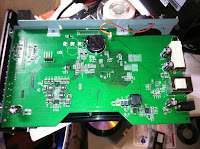

It takes advantage of LVM for its flexibility in storage management and data protection. The Linux heritage also gives it a long list of integrated, optional features that make it very interesting to someone that otherwise has no fileserver at home, but unless you're ready to get your hands dirty, it isn't expandable as an application platform. The device exposes its functionality through a very user-friendly web interface, and has four front-panel lights to communicate system status to the user/operator.
Personally, I thought it might be a clever way to store disk images in a shared, network-accessible location without using expensive SAN storage. We currently do it all the time on a regular workstation with a gigantic drive, and I thought this would give us a smaller footprint than a full-size PC. Further, I thought the ~1TB usable storage could be augmented with a Drobo connected via USB as add-on capacity without increasing the physical footprint.
This use case more-or-less failed miserably. Although I knew a mirrored-pair of SATA drives wouldn't have much throughput, I didn't "do the math" ahead of time to see just how bad it would be to save an image. My test platform was pretty basic: I attached a 320GB SATA disk to a USB adapter and began writing the image to a CIFS share. The image was larger than usual because it was a disk I wanted to archive after being in production, not a template image for other production disks.
I gave up on the image when it was 1h into it and was going to take another (estimated) 7h.
Truth is, I didn't expect much out of it given that it's basically a single, slow SATA disk: in mirrored mode, you might get some improvement in reads, but your writes will be penalized a little for the mirror set to stay in sync. The fact that I didn't pay for the thing made the discovery pretty painless.
The second part of the plan was also thwarted: the first-gen Drobo that I plugged into the unit wouldn't show up as attached storage. The Drobo works fine on my Windows 7 desktop, and other types of USB storage worked fine on the ix2. Nope, these two guys just aren't compatible.
So now I'm playing: I picked up a pair of 2TB, 7200RPM SATA-3 drives on sale (Hitachi H3D20006472S), and have proven to myself that it's possible to a) upgrade to faster disk and b) expand the capacity on the ix2. There's no secret to getting a faster disk installed: replace the two disks one-at-a-time (with a disk of same-or-larger capacity) and let the Linux mdadm subsystem resynchronize the data from the remaining disk. Increasing the capacity is a bit more technical, requiring console access (for non-destructive resize); I've not tried it, but it may be possible to resize using a factory reset, but I didn't try it myself. I do know, however, that SSH access and basic understanding of LVM makes storage modification a cakewalk. I've even contemplated resizing the user storage volume down to a bare-minimum in order to replace the disks with SSDs. The capacity is miniscule compared to spinning-disk, but the experiment to see how fast it could be is kind of compelling...
At any rate: I'm in the process of building a table of performance data from iometer, and I'm including not just the stock drives, but the upgraded pair, my 1st-gen Drobo and my Drobo Pro. I'm also going to include the results from a pair of 128GB Kingston SSDs in a stripe set (RAID 0) from my desktop machine as a "best-case scenario" for comparison.
And finally, one might think that my experience with the ix2 would have soured me on the whole line of products. It hasn't. I also have a 4TB (raw) ix4-200d that I picked up for cheap on eBay which I've proven to myself makes a stellar backup target for VMware environments using NFS. I will add the performance metrics from that unit to my results, as well as the results I get when I finish upgrading its disks from 4x1TB 5900RPM units to 4x2TB 7200RPM units. I am predicting that I will be much happier with the performance of the upgraded ix4 than the performance I'm currently getting out of the Drobo Pro.
Stay tuned!

The unit I received is the 2TB version, meaning that it had a pair of 1TB, 5900 RPM SATA-2 disks (Seagate ST31000520AS, to be exact). You can find reviews of this unit (and its drives) all over the Internet, both singing its praises as well as trashing iomega, EMC and anyone considered foolish enough to entrust data to the device.
In a nutshell, the unit is a


It takes advantage of LVM for its flexibility in storage management and data protection. The Linux heritage also gives it a long list of integrated, optional features that make it very interesting to someone that otherwise has no fileserver at home, but unless you're ready to get your hands dirty, it isn't expandable as an application platform. The device exposes its functionality through a very user-friendly web interface, and has four front-panel lights to communicate system status to the user/operator.
Personally, I thought it might be a clever way to store disk images in a shared, network-accessible location without using expensive SAN storage. We currently do it all the time on a regular workstation with a gigantic drive, and I thought this would give us a smaller footprint than a full-size PC. Further, I thought the ~1TB usable storage could be augmented with a Drobo connected via USB as add-on capacity without increasing the physical footprint.
This use case more-or-less failed miserably. Although I knew a mirrored-pair of SATA drives wouldn't have much throughput, I didn't "do the math" ahead of time to see just how bad it would be to save an image. My test platform was pretty basic: I attached a 320GB SATA disk to a USB adapter and began writing the image to a CIFS share. The image was larger than usual because it was a disk I wanted to archive after being in production, not a template image for other production disks.
I gave up on the image when it was 1h into it and was going to take another (estimated) 7h.
Truth is, I didn't expect much out of it given that it's basically a single, slow SATA disk: in mirrored mode, you might get some improvement in reads, but your writes will be penalized a little for the mirror set to stay in sync. The fact that I didn't pay for the thing made the discovery pretty painless.
The second part of the plan was also thwarted: the first-gen Drobo that I plugged into the unit wouldn't show up as attached storage. The Drobo works fine on my Windows 7 desktop, and other types of USB storage worked fine on the ix2. Nope, these two guys just aren't compatible.
So now I'm playing: I picked up a pair of 2TB, 7200RPM SATA-3 drives on sale (Hitachi H3D20006472S), and have proven to myself that it's possible to a) upgrade to faster disk and b) expand the capacity on the ix2. There's no secret to getting a faster disk installed: replace the two disks one-at-a-time (with a disk of same-or-larger capacity) and let the Linux mdadm subsystem resynchronize the data from the remaining disk. Increasing the capacity is a bit more technical, requiring console access (for non-destructive resize); I've not tried it, but it may be possible to resize using a factory reset, but I didn't try it myself. I do know, however, that SSH access and basic understanding of LVM makes storage modification a cakewalk. I've even contemplated resizing the user storage volume down to a bare-minimum in order to replace the disks with SSDs. The capacity is miniscule compared to spinning-disk, but the experiment to see how fast it could be is kind of compelling...
At any rate: I'm in the process of building a table of performance data from iometer, and I'm including not just the stock drives, but the upgraded pair, my 1st-gen Drobo and my Drobo Pro. I'm also going to include the results from a pair of 128GB Kingston SSDs in a stripe set (RAID 0) from my desktop machine as a "best-case scenario" for comparison.
And finally, one might think that my experience with the ix2 would have soured me on the whole line of products. It hasn't. I also have a 4TB (raw) ix4-200d that I picked up for cheap on eBay which I've proven to myself makes a stellar backup target for VMware environments using NFS. I will add the performance metrics from that unit to my results, as well as the results I get when I finish upgrading its disks from 4x1TB 5900RPM units to 4x2TB 7200RPM units. I am predicting that I will be much happier with the performance of the upgraded ix4 than the performance I'm currently getting out of the Drobo Pro.
Stay tuned!
Thursday, March 31, 2011
Google paints malware bullseye on Kansas City, Kansas
Google announced on 30-Mar-2011 that Kansas City, Kansas (KCK) would be the first city to receive ultra-high-speed broadband on the company's dime.
Google has also stated that this is the first of many cities—not the only—that will receive their attention.
When Google first announced the project, they made it pretty clear that they'll be offering competitive pricing, but the pipe will be huge: gigabit fibre to the curb. The project is ambitious and potentially wonderful for those areas receiving the attention.
It will be interesting to see the fallout in KCK from the incumbents in the telco/cable duopoly. To start with, expect lawsuits. Incumbents don't like it when new players invade "their turf"; and when the city government is "in cahoots" with the new guy, there's not much room for backroom deals to quash the competition.
The second thing to expect is competition; however, I don't see that happening anywhere but within the active service boundaries. I have a friend who lived in an area with a single cable provider; he was at their mercy for Internet pricing, and DSL wasn't a viable option because of the distance to the C/O. When a second cable provider started installing their plant in his neighborhood, he tried to get some competitive pricing from the incumbent. It shouldn't come as a surprise that they were not willing to help him out: although they knew there was competition in the neighborhood, they also knew that his specific household couldn't get service from the new operator—even though the guy across the street could. Only once the new operator built out further and was able to offer service to his household was the old company interested in offering a better price. My friend opted for the new company as much out of spite as anything else.
The third thing to expect, however, is probably not on many people's radar just yet: expect KCK to become a hotbed for bot-herder interest. It's pretty logical:
Don't get me wrong: I'm happy for KCK and how this will (hopefully) provide a positive impact on the rest of the Kansas City metro area (where I happen to live). But you can bet that the malware community will also be watching this with interest and work to find ways to take advantage of those lucky subscribers' machines—and the big, fat Google-pipes to which they're attached.
Google has also stated that this is the first of many cities—not the only—that will receive their attention.
When Google first announced the project, they made it pretty clear that they'll be offering competitive pricing, but the pipe will be huge: gigabit fibre to the curb. The project is ambitious and potentially wonderful for those areas receiving the attention.
It will be interesting to see the fallout in KCK from the incumbents in the telco/cable duopoly. To start with, expect lawsuits. Incumbents don't like it when new players invade "their turf"; and when the city government is "in cahoots" with the new guy, there's not much room for backroom deals to quash the competition.
The second thing to expect is competition; however, I don't see that happening anywhere but within the active service boundaries. I have a friend who lived in an area with a single cable provider; he was at their mercy for Internet pricing, and DSL wasn't a viable option because of the distance to the C/O. When a second cable provider started installing their plant in his neighborhood, he tried to get some competitive pricing from the incumbent. It shouldn't come as a surprise that they were not willing to help him out: although they knew there was competition in the neighborhood, they also knew that his specific household couldn't get service from the new operator—even though the guy across the street could. Only once the new operator built out further and was able to offer service to his household was the old company interested in offering a better price. My friend opted for the new company as much out of spite as anything else.
The third thing to expect, however, is probably not on many people's radar just yet: expect KCK to become a hotbed for bot-herder interest. It's pretty logical:
- The average Internet user—either business or personal consumers—won't have the resources or skill to safeguard system(s) from malware, especially if under persistent scrutiny and attack.
- A fat-pipe zombie is a much more valuable asset to a bot-herder than a small-pipe zombie.
Don't get me wrong: I'm happy for KCK and how this will (hopefully) provide a positive impact on the rest of the Kansas City metro area (where I happen to live). But you can bet that the malware community will also be watching this with interest and work to find ways to take advantage of those lucky subscribers' machines—and the big, fat Google-pipes to which they're attached.
Friday, March 25, 2011
iPhone Battery Drain--Fix!
It's happened to me twice now, but this time I was able to do something about it...
My iPhone went bonkers yesterday and stared draining the battery like there was no tomorrow. It went from fully-charged to 20% in 3 hours; that's just nuts.
I did what every iOS user does in that situation: kill all the backgrounded stuff and restart the device. Usually that works pretty well. This time it didn't.
The phone was using the battery so "hard" that the device was warm to the touch. Again, that's just nuts.
So I got the thing connected to my office WiFi and started watching the syslogger for my firewall; every TCP connection would then be logged for the device.
Sure enough, I found the culprit: the Exchange ActiveSync service for my home email (yes, I run an Exchange server at home) was getting requests from the phone every couple of seconds.
Given that I had problems with my Inbox earlier this week using Thunderbird, I assumed that I had another "broken" email message in my Inbox, and moved all the messages to another folder. The inbox cleared up on my iPhone, but it was still going after the server like gangbusters.
So I deleted the EAS profile from the phone. Blissful silence from the syslogger was the result. Then I re-applied the EAS configuration profile to the phone to re-establish the EAS connection, and voila!, the phone isn't going apeshit anymore.
I'm not sure I want to tempt fate and put all the messages from my inbox back, but I am pretty happy with the result: the battery should once again last all day.
My iPhone went bonkers yesterday and stared draining the battery like there was no tomorrow. It went from fully-charged to 20% in 3 hours; that's just nuts.
I did what every iOS user does in that situation: kill all the backgrounded stuff and restart the device. Usually that works pretty well. This time it didn't.
The phone was using the battery so "hard" that the device was warm to the touch. Again, that's just nuts.
So I got the thing connected to my office WiFi and started watching the syslogger for my firewall; every TCP connection would then be logged for the device.
Sure enough, I found the culprit: the Exchange ActiveSync service for my home email (yes, I run an Exchange server at home) was getting requests from the phone every couple of seconds.
Given that I had problems with my Inbox earlier this week using Thunderbird, I assumed that I had another "broken" email message in my Inbox, and moved all the messages to another folder. The inbox cleared up on my iPhone, but it was still going after the server like gangbusters.
So I deleted the EAS profile from the phone. Blissful silence from the syslogger was the result. Then I re-applied the EAS configuration profile to the phone to re-establish the EAS connection, and voila!, the phone isn't going apeshit anymore.
I'm not sure I want to tempt fate and put all the messages from my inbox back, but I am pretty happy with the result: the battery should once again last all day.
Sunday, March 13, 2011
The automation maker's nightmare: undocumented API changes.
One of my main job duties is taking the mundane and manual and figuring out a way to use technology to automate them. I've been doing this for over 10 years now, and I like to think I've gotten pretty good at it. The processes I've built (with the help of some amazingly intelligent business folk who understood the problems and were able to empower me to help them) have saved the company not just in dollars (which is easy to justify when you're liberating employees from the menial tasks of pure data-entry job responsibilities), but in reputation by driving inaccuracies out and efficiency in. It's not the case that what I write is flawless—I'm not that good, and I wouldn't trust anyone who claimed to be—but that flaws tend to show up in a way that is repeatable and (usually) correctable.
And so it goes...
One of the most powerful tools I have in my automation tool-set is Perl. The rich API that is available gives me the capability of adding lots of functionality and automation to the business environment. When it comes to getting external data into SQL databases, it's the first thing for which I reach.
I had a script that I wrote a few years ago, and while it worked well at getting records pushed into a table, it wasn't very fast. In short, I was doing a lot of work in the script that could have been done by the DB server if I'd just take the time to write a stored procedure for the "heavy lifting." But, because I was only parsing data on a handful of rows, and I was doing it no more often than every 10 minutes, it wasn't worth the effort.
That all changed a few days ago: I discovered that the script had been disabled for about 18 months, and all that data that should have been pushed into the target table had not. The data in question was the raw feed from an external data source; the script's job was to keep a rarely-used "raw data" table populated for the occasional special report. In our normal process, the raw data is transformed before being consumed by the business systems, and that hadn't been affected by the disabled script—which is why this issue hadn't come to light earlier.
But now I had one of those "occasions" where I needed the raw data for a special report, and 18 months of data was over 1 million rows to read and insert from thousands of text files.
Under the original design, here's what the script did:
So I building the new SP. The target engine was Microsoft SQL 2005, so it looked a bit like this:
Well, that worked great in manual testing, so I went to update the perl code to accommodate the changes. My first roadblock was the inability to get ahold of the return value from the SP; the database driver will create an automatic parameter called @RETURNVALUE, but the DBI engine for perl doesn't have any documented way to get at it (at least, not when the SP isn't returning a dataset). I spent a while searching the Internet for a fix, but no avail. I'm sure it's possible, but in the interest of getting things done, I decided to punt and added the status as another OUTPUT argument.
I moved on to get the code running with the combination of input and output parameters, using the
It took a number of iterations to figure out the idiosyncrasies, but I finally had the script running on my sample dataset. At that point, I was able to turn it loose on the unprocessed data files from my original raw source; it was fantastic: The script chewed through 18 months of records in just over an hour, inserting over 1.1 million records. In comparison, the previous script ran through less than 5 months of files in around 10 hours.
Given the all-over success, I put the new script into the production automation process to take advantage of the additional performance (even on small datasets, improved efficiency is a good thing on a multiuser database system).
And immediately started getting syntax errors from the automation system.
What? I checked and rechecked, but everything was right. It tested perfectly on my development machine. I checked the versions of the Perl DBI modules: identical. I checked the SQL drivers: while they weren't identical, they were the "latest/greatest" for each platform. Okay, so that was a possible source; unfortunately, I could prove that it wasn't the problem because I could use the driver and a command-line utility and run the code without error. At that point, I knew the issue was within Perl, and a quick check showed that I was running 5.8 on my dev machine, but 5.10 on the automation host.
More troubleshooting, and I finally discovered the root cause through a Profiler run. On my dev machine running 5.8, the Perl statement I wrote and the statement that Profiler showed the DBMS receiving, they were identical:
My final solution now tests for the Perl version (using the built-in special variable
And so it goes...
One of the most powerful tools I have in my automation tool-set is Perl. The rich API that is available gives me the capability of adding lots of functionality and automation to the business environment. When it comes to getting external data into SQL databases, it's the first thing for which I reach.
I had a script that I wrote a few years ago, and while it worked well at getting records pushed into a table, it wasn't very fast. In short, I was doing a lot of work in the script that could have been done by the DB server if I'd just take the time to write a stored procedure for the "heavy lifting." But, because I was only parsing data on a handful of rows, and I was doing it no more often than every 10 minutes, it wasn't worth the effort.
That all changed a few days ago: I discovered that the script had been disabled for about 18 months, and all that data that should have been pushed into the target table had not. The data in question was the raw feed from an external data source; the script's job was to keep a rarely-used "raw data" table populated for the occasional special report. In our normal process, the raw data is transformed before being consumed by the business systems, and that hadn't been affected by the disabled script—which is why this issue hadn't come to light earlier.
But now I had one of those "occasions" where I needed the raw data for a special report, and 18 months of data was over 1 million rows to read and insert from thousands of text files.
Under the original design, here's what the script did:
- read a line of data
- parse the data into fields
- check the target table to see if the data existed
- if it didn't exist, insert it
- if it existed but was exactly identical, do nothing
- if it existed but was different, update the record
SELECT, an INSERT and an UPDATE), and two of them would necessarily run for each record being inserted. Updating the script to use a stored procedure (SP) to take care of the process would be easy; because I wanted to retain all the debugging and logging information in the original script, I would need to take some additional steps to make sure the new SP would return useful information back to the calling script. My DBMS allows the use of output parameters, so that wasn't an obstacle.So I building the new SP. The target engine was Microsoft SQL 2005, so it looked a bit like this:
CREATE PROCEDURE dbo.usp_Archive_AddRec (
   @arg1 int, --unique identifier for the record
   @arg2 int, --additional record data
   @oldarg2 int=NULL OUTPUT --previous value of @arg2 if updated
)
AS
SET NOCOUNT ON;
DECLARE @status int;
SET @status=0; -- returned value: 0=no changes, 1=record inserted, 2=record updated

DECLARE @oldbits TABLE (item int);

BEGIN TRY
   INSERT dbo.tbl_Archive (pk,item)
   VALUES (@arg1,@arg2);
   SET @status=1;
END TRY
BEGIN CATCH
   --most typical reason for the failure to insert
   --is an existing record; do an update instead
   BEGIN TRY
      UPDATE dbo.tbl_Archive
      SET item=@arg2
      OUTPUT DELETED.item INTO @oldbits --capture the previous value during update!
      WHERE
         pk=@arg1
         AND item != @arg2 --only update if the record is actually different
      ;
      IF @@rowcount > 0 BEGIN
         SELECT TOP 1 @oldarg2=item FROM @oldbits;
         SET @status=2;
      END;
   END TRY
   BEGIN CATCH
      SET @status=-1; --some unexpected SQL result/error
   END CATCH;
END CATCH
RETURN @status;
Well, that worked great in manual testing, so I went to update the perl code to accommodate the changes. My first roadblock was the inability to get ahold of the return value from the SP; the database driver will create an automatic parameter called @RETURNVALUE, but the DBI engine for perl doesn't have any documented way to get at it (at least, not when the SP isn't returning a dataset). I spent a while searching the Internet for a fix, but no avail. I'm sure it's possible, but in the interest of getting things done, I decided to punt and added the status as another OUTPUT argument.
I moved on to get the code running with the combination of input and output parameters, using the
bind_param_inout form of parameter binding in order to get the return data.It took a number of iterations to figure out the idiosyncrasies, but I finally had the script running on my sample dataset. At that point, I was able to turn it loose on the unprocessed data files from my original raw source; it was fantastic: The script chewed through 18 months of records in just over an hour, inserting over 1.1 million records. In comparison, the previous script ran through less than 5 months of files in around 10 hours.
Given the all-over success, I put the new script into the production automation process to take advantage of the additional performance (even on small datasets, improved efficiency is a good thing on a multiuser database system).
And immediately started getting syntax errors from the automation system.
What? I checked and rechecked, but everything was right. It tested perfectly on my development machine. I checked the versions of the Perl DBI modules: identical. I checked the SQL drivers: while they weren't identical, they were the "latest/greatest" for each platform. Okay, so that was a possible source; unfortunately, I could prove that it wasn't the problem because I could use the driver and a command-line utility and run the code without error. At that point, I knew the issue was within Perl, and a quick check showed that I was running 5.8 on my dev machine, but 5.10 on the automation host.
More troubleshooting, and I finally discovered the root cause through a Profiler run. On my dev machine running 5.8, the Perl statement I wrote and the statement that Profiler showed the DBMS receiving, they were identical:
exec dbo.usp_Archive_AddRec (
      @arg1=@p1,
      @arg2=@p2,
      @oldarg2=@p3 OUTPUT,
      @status=@p4 OUTPUT
   );
But Profiler showed me that the 5.10 production system was not sending the SQL as I wrote it; instead, it was doing some automatic edits:exec dbo.usp_Archive_AddRec (
@arg1=@p1,
@arg2=@p2,
@oldarg2=@p3 OUTPUT OUTPUT,
@status=@p4 OUTPUT OUTPUT
);
As near as I can tell, when the bind_param_inout DBI method is used in the 5.10 environment, it automatically updates the SQL query to convert the argument to an OUTPUT parameter. I spent a couple of hours searching for a switch or other argument to disable the behavior, but no luck. I was stuck with it.My final solution now tests for the Perl version (using the built-in special variable
$]) and adjusts the SQL statement accordingly; it now works without modification on every Perl environment in our datacenter.
Wednesday, March 9, 2011
Overcoming a CDMA smartphone's limitations
A number of pundits have posited that the Verizon iPhone wouldn't gain much traction with current GSM customers because of CDMA's designed-in inability to do voice & data simultaneously. AT&T is trying to play up that aspect of their smartphone lineup (not just the iPhone), while Verizon is playing up the "dropped call" perception that AT&T is suffering.
I'm a longtime, loyal Verizon customer. I have received great coverage and customer support the whole time I've been with them, and I'm not interested in anything that's not on Verizon. So how does one overcome the limitation with CDMA?
With WiFi.
As I understand it, this is the case with all smartphones, not just Verizon's iPhone: if you have WiFi available (and connected), all the data flows through that route, leaving the cellular connection available for calls. That may be fine for home and at the office (assuming WiFi is available), but how do you manage that when out-and-about?
Well, my solution may be a little unorthodox, but I find that it works quite well: I keep a Verizon MiFi in my car, so WiFi is readily available wherever I go.
Yeah, that's a bit crazy, but follow my reasoning, and you may agree that it's "crazy like a fox."
First off, I have a laptop and iPad that don't have cellular network access, so I've made the conscious decision to use a MiFi for them. At the time I purchased the MiFi, I also had an iPod Touch, so that made three devices that could share the one data plan. Brilliant device, the MiFi.
But now that I've traded the iPod for an iPhone, why not cancel the MiFi data plan in exchange for the lower cost of using the Personal Hotspot app? I quickly discovered that there are many disadvantages that come with that decision, most of which stem from Apple's design of the iOS operating system: when using the hotspot app, your iPhone more or less ceases to be a phone.
I don't have any experience with Android, but it may be similar: unless you root your phone, you live with lots of limitation on what it can do concurrently.
So if you decide that you're going to have that dedicated WiFi hotspot, you've just created the situation that will overcome CDMA limitations: Let your smartphone use the MiFi, too. Yeah, it's kind of redundant: using a Verizon MiFi to provide WiFi to a Verizon smartphone: either way—cellular or WiFi—the phone is using Verizon's network.
That's cool. You have access to voice and data simultaneously, even when you're out-and-about. But here's where it gets really interesting: I have no facts to back this up, but it has been my experience that the MiFi does a better job of maintaining data connections when traveling in the hinterlands and low-coverage areas. I routinely travel in places where my phone (both Blackberry and iPhone) goes into low/no data modes while the MiFi happily runs as if nothing had changed. It is my theory that when the carrier provisions a data-only device like the MiFi, it has the option to favor data over voice for the signal usage, where a phone will always be provisioned to prioritize voice over data. When in those coverage areas, I find that my CDMA phone is no better or worse than in good coverage: the data and calls still get through.
So there you have it: Get a dedicated personal hotspot, and your CDMA smartphone—not to mention any other WiFi-only devices—will always have access to data, even when you're on a call.
I'm a longtime, loyal Verizon customer. I have received great coverage and customer support the whole time I've been with them, and I'm not interested in anything that's not on Verizon. So how does one overcome the limitation with CDMA?
With WiFi.
As I understand it, this is the case with all smartphones, not just Verizon's iPhone: if you have WiFi available (and connected), all the data flows through that route, leaving the cellular connection available for calls. That may be fine for home and at the office (assuming WiFi is available), but how do you manage that when out-and-about?
Well, my solution may be a little unorthodox, but I find that it works quite well: I keep a Verizon MiFi in my car, so WiFi is readily available wherever I go.
Yeah, that's a bit crazy, but follow my reasoning, and you may agree that it's "crazy like a fox."
First off, I have a laptop and iPad that don't have cellular network access, so I've made the conscious decision to use a MiFi for them. At the time I purchased the MiFi, I also had an iPod Touch, so that made three devices that could share the one data plan. Brilliant device, the MiFi.
But now that I've traded the iPod for an iPhone, why not cancel the MiFi data plan in exchange for the lower cost of using the Personal Hotspot app? I quickly discovered that there are many disadvantages that come with that decision, most of which stem from Apple's design of the iOS operating system: when using the hotspot app, your iPhone more or less ceases to be a phone.
I don't have any experience with Android, but it may be similar: unless you root your phone, you live with lots of limitation on what it can do concurrently.
So if you decide that you're going to have that dedicated WiFi hotspot, you've just created the situation that will overcome CDMA limitations: Let your smartphone use the MiFi, too. Yeah, it's kind of redundant: using a Verizon MiFi to provide WiFi to a Verizon smartphone: either way—cellular or WiFi—the phone is using Verizon's network.
That's cool. You have access to voice and data simultaneously, even when you're out-and-about. But here's where it gets really interesting: I have no facts to back this up, but it has been my experience that the MiFi does a better job of maintaining data connections when traveling in the hinterlands and low-coverage areas. I routinely travel in places where my phone (both Blackberry and iPhone) goes into low/no data modes while the MiFi happily runs as if nothing had changed. It is my theory that when the carrier provisions a data-only device like the MiFi, it has the option to favor data over voice for the signal usage, where a phone will always be provisioned to prioritize voice over data. When in those coverage areas, I find that my CDMA phone is no better or worse than in good coverage: the data and calls still get through.
So there you have it: Get a dedicated personal hotspot, and your CDMA smartphone—not to mention any other WiFi-only devices—will always have access to data, even when you're on a call.
Monday, March 7, 2011
Blackberry vs iPhone
Executive Summary: don't give up your corporate Blackberry in favor of an iPhone, regardless of whether you're on Verizon or AT&T.
Background:
I've been a Verizon customer for as long as I can remember—over 15 years—and have been a Blackberry/RIM customer and BES+Exchange administrator for over 5 years. I've used and supported Blackberry devices going back to the 7250 (CDMA Color "click wheel"), and still believe that the "Curve 2" is the best device they've come out with for Verizon to date.
That said: for anything other than phone calls and interacting with the corporate Exchange server, the Blackberry pretty much sucks. The Java platform is slow and clunky, and something as simple as web browsing is an exercise in futility.
When the iPhone was released, I thought it was a clever toy. I had associates with them that loved them, but in many ways my Blackberry Curve was better. I had a flash for my camera. I could take motion video. I could type long messages on the thumb keyboard with a minimum of errors, and when AutoCorrect was 'invoked', it normally made sense; better yet, I had complete configuration control over AutoCorrect in the Settings application. Had the iPhone come to Verizon in its pre-iOS4 incarnations, there's no doubt that I'd have stuck with my Blackberry.
Enter the iPad.
To be sure, I agreed with many of the tech press who thought of the iPad as a bit of a toy—"an iPod Touch on steroids"—from the rumors and actual announcement by Apple in early 2010. I had no desire to buy one, and would probably still be a happy laptop-only guy had I not won one in a drawing. Of course, it was "only" the $500 16GB WiFi model, but it was enough: in short order, I realized how useful a smaller, pocket-sized version of the iPad would be, and soon had an iPod Touch to complement the iPad.
Make no mistake: for me, the iPod Touch was a miniature iPad; in no way was the iPad ever like an iPod Touch on steroids. And I still carried my Blackberry in order to "get work done."
I soon discovered the limitations of he WiFi-only lifestyle: while WiFi has become fairly ubiquitous in my town and areas where I work and live, coverage just isn't universal. One solution would be an upgrade of the iPad by replacing it with a 3G model; another would be replacing the Touch with an iPhone. Unfortunately, both solutions leave the other device "unconnected", force you into multiple data plans, or force you to leave/change carriers. My solution was to add the Verizon MiFi.
That choice turned out to be genius: not only did it answer the need I had for the two iOS devices, it also filled the gap for my laptop use. Now I didn't need to plan my on-call outings around local hotspots: the hotspot came with me. On more than one occasion, having the MiFi in the car gave me and/or my wife constant connectivity for all the devices at hand.
So this setup worked fine for the better part of a year: I'd keep my Blackberry for phone and email; the MiFi was "always on" and available in the car; use the iPod for casual gaming and web browsing; the iPad was a pure entertainment device—movies, social networking, Angry Birds HD—while still keeping a laptop and desktop for "real work". My business life was primarily supported on the business Blackberry's phone/data plan, and my personal life was primarily supported on the personal MiFi data plan.
When the Verizon iPhone finally made its appearance in 2011, I decided to take the plunge: I'd eject the Blackberry and iPod in favor of the iPhone in order to pilot the device for the company.
Results:
The iPhone on Verizon is a very capable phone. Shortly after my switch, I had to work with a vendor's tech support for an issue and spent over 4 hours on a call. This is no feat for a Verizon Blackberry, but is anecdotally known to be problematic on AT&T iPhones.
As expected, all my iOS applications were able to move from the iPod to the iPhone, but in order to match some of the corporate Blackberry functionality, I had to add a couple additional apps: While iPhone supports Exchange ActiveSync (EAS), [in my environment] it only supports synchronization of mail, contacts and calendar. I'm a regular user of Tasks and Notes, so iMExchange 2 was my fix. Later, I learned that the only way to manage out-of-office notifications "natively" is through Safari, so I added iGone to improve the experience a bit. Great: free functionality on the Blackberry can only be achieved with $4 in applications on the iPhone.
But wait; there's more: EAS, VPN, iMExchange and any other interactions with the corporate network rely on your Windows/Active Directory logon. When your corporate policy requires you to change your password on a regular basis, you must manually change it on your iOS devices to match. And you better do it quickly, or your devices could fail to logon enough times to lock you out of your account. Yet another place where the Blackberry excels (because it uses a proxy agent to access your stuff); and unlike my other conversion issues, "there's no app for that."
As a replacement for the iPod Touch, I really appreciate the additional functionality of the GPS, accelerometer and always-on connectivity (the WiFi-only devices drop their connections when in stand-by, while iPhone switches to 3G when in standby).
Other nits:
So that's it: I've joined many of you that are in a love/hate relationship with an iPhone. The Apple hegemony is set up so that I'll likely never see my "nits" addressed, and some of them—like the EAS password issue—are deal-breakers for my recommendation as a replacement for a business Blackberry. Personally, I'm not ready to give up on iPhone and go back to a Blackberry, but I've been on one long enough to have interest in what RIM decides to do with Qnx after they get the Playbook released. If they manage to breathe new life into their devices and put some good, basic functionality back into their OS, I can see myself going back to Blackberry for my corporate life.
Background:
I've been a Verizon customer for as long as I can remember—over 15 years—and have been a Blackberry/RIM customer and BES+Exchange administrator for over 5 years. I've used and supported Blackberry devices going back to the 7250 (CDMA Color "click wheel"), and still believe that the "Curve 2" is the best device they've come out with for Verizon to date.
That said: for anything other than phone calls and interacting with the corporate Exchange server, the Blackberry pretty much sucks. The Java platform is slow and clunky, and something as simple as web browsing is an exercise in futility.
When the iPhone was released, I thought it was a clever toy. I had associates with them that loved them, but in many ways my Blackberry Curve was better. I had a flash for my camera. I could take motion video. I could type long messages on the thumb keyboard with a minimum of errors, and when AutoCorrect was 'invoked', it normally made sense; better yet, I had complete configuration control over AutoCorrect in the Settings application. Had the iPhone come to Verizon in its pre-iOS4 incarnations, there's no doubt that I'd have stuck with my Blackberry.
Enter the iPad.
To be sure, I agreed with many of the tech press who thought of the iPad as a bit of a toy—"an iPod Touch on steroids"—from the rumors and actual announcement by Apple in early 2010. I had no desire to buy one, and would probably still be a happy laptop-only guy had I not won one in a drawing. Of course, it was "only" the $500 16GB WiFi model, but it was enough: in short order, I realized how useful a smaller, pocket-sized version of the iPad would be, and soon had an iPod Touch to complement the iPad.
Make no mistake: for me, the iPod Touch was a miniature iPad; in no way was the iPad ever like an iPod Touch on steroids. And I still carried my Blackberry in order to "get work done."
I soon discovered the limitations of he WiFi-only lifestyle: while WiFi has become fairly ubiquitous in my town and areas where I work and live, coverage just isn't universal. One solution would be an upgrade of the iPad by replacing it with a 3G model; another would be replacing the Touch with an iPhone. Unfortunately, both solutions leave the other device "unconnected", force you into multiple data plans, or force you to leave/change carriers. My solution was to add the Verizon MiFi.
That choice turned out to be genius: not only did it answer the need I had for the two iOS devices, it also filled the gap for my laptop use. Now I didn't need to plan my on-call outings around local hotspots: the hotspot came with me. On more than one occasion, having the MiFi in the car gave me and/or my wife constant connectivity for all the devices at hand.
So this setup worked fine for the better part of a year: I'd keep my Blackberry for phone and email; the MiFi was "always on" and available in the car; use the iPod for casual gaming and web browsing; the iPad was a pure entertainment device—movies, social networking, Angry Birds HD—while still keeping a laptop and desktop for "real work". My business life was primarily supported on the business Blackberry's phone/data plan, and my personal life was primarily supported on the personal MiFi data plan.
When the Verizon iPhone finally made its appearance in 2011, I decided to take the plunge: I'd eject the Blackberry and iPod in favor of the iPhone in order to pilot the device for the company.
Results:
The iPhone on Verizon is a very capable phone. Shortly after my switch, I had to work with a vendor's tech support for an issue and spent over 4 hours on a call. This is no feat for a Verizon Blackberry, but is anecdotally known to be problematic on AT&T iPhones.
As expected, all my iOS applications were able to move from the iPod to the iPhone, but in order to match some of the corporate Blackberry functionality, I had to add a couple additional apps: While iPhone supports Exchange ActiveSync (EAS), [in my environment] it only supports synchronization of mail, contacts and calendar. I'm a regular user of Tasks and Notes, so iMExchange 2 was my fix. Later, I learned that the only way to manage out-of-office notifications "natively" is through Safari, so I added iGone to improve the experience a bit. Great: free functionality on the Blackberry can only be achieved with $4 in applications on the iPhone.
But wait; there's more: EAS, VPN, iMExchange and any other interactions with the corporate network rely on your Windows/Active Directory logon. When your corporate policy requires you to change your password on a regular basis, you must manually change it on your iOS devices to match. And you better do it quickly, or your devices could fail to logon enough times to lock you out of your account. Yet another place where the Blackberry excels (because it uses a proxy agent to access your stuff); and unlike my other conversion issues, "there's no app for that."
As a replacement for the iPod Touch, I really appreciate the additional functionality of the GPS, accelerometer and always-on connectivity (the WiFi-only devices drop their connections when in stand-by, while iPhone switches to 3G when in standby).
Other nits:
- the Calendar app on iPhone—whether a side-effect of EAS or a "standard" iOS functionality—removes stubbed-in meeting invitations. Before I started using iPhone, meeting invites were always written to my calendar as "tentative"; they stayed that way until I chose to do something about them. With iPhone, those tentatives are removed and aren't part of my calendar at all if I don't take some sort of action.
- Sound/vibrate on iPhone—With iPhone, you have two states for sound/vibration: "noisy" and "silent". While you have a great deal of control over the ringtones for phone calls, you are otherwise brutally limited in your control over notification sounds and/or vibration. In contrast, Profiles on the Blackberry are wonderful. Not only can you set per-contact notification styles, you can set up various sound-only, vibrate-only and sound+vibrate profiles for various message types. Further, on the newer Blackberrys, you can set up a "bedside mode" profile that is automatically invoked when some combination of "plugged in" and time rules are met. In my case, I would switch to "phone only" from 11pm to 6am when on the charger, and "vibrate only" at any other time.
- Virtual Keyboard on iPhone (and to be fair, any touch-only device) is nowhere as reliable or responsive as the thumb-board of the Blackberry. To be fair, I think some of the Blackberry models have terrible keyboards, too, but the frequency in which I accidentally hit "delete" instead of "m" on iPhone is just appalling. And Apples insistence that no 3rd parties "muck with" the keyboard means there will never be any real improvements in it.
- Email Management: The only place iPhone beats Blackberry for email management is support for multiple Exchange connections (starting in iOS 4); there's no way to connect to multiple BES servers using Blackberry. That said, however, the Blackberry is the hands-down champion for email management. The Blackberry "knows" that it's a messaging platform. When a new message comes in, the device can be configured to jump directly to it when unholstered or awakened from "sleep." In contrast, messaging is just another app (albiet built-in) on iPhone. When a new message comes in, you may get notification, but when you invoke the app, it returns to the last state you left it; sometimes, that requires 3-4 taps to get to the new message. In addition, with iPhone, you can't:
- Filter messages from being forwarded to the handheld; Blackberry has a robust ruleset for managing this.
- Select multiple messages for mark-as-read/unread (although you can move or delete multiple messages) or mark read before a given date—I used this function all the time on my BB.
- Delete on the handheld but leave on the server.
So that's it: I've joined many of you that are in a love/hate relationship with an iPhone. The Apple hegemony is set up so that I'll likely never see my "nits" addressed, and some of them—like the EAS password issue—are deal-breakers for my recommendation as a replacement for a business Blackberry. Personally, I'm not ready to give up on iPhone and go back to a Blackberry, but I've been on one long enough to have interest in what RIM decides to do with Qnx after they get the Playbook released. If they manage to breathe new life into their devices and put some good, basic functionality back into their OS, I can see myself going back to Blackberry for my corporate life.
Tuesday, December 16, 2008
Shutdown without powering off.
Have you ever needed to shut down your PC, but wanted it to stay powered-on for some reason?
In my case, I have a power outage scheduled at a remote location—the power company is going to kill the power to do utility work for about 4 hours—and I really don't want to drive out to the remote location just to turn the server back on.
What I'd prefer to do is use remote access to put the server in a state that is "safe" for the operating system (i.e., I/O is flushed and volumes are clean dismounted), but it is still "on" so that when the power comes back on after being off for a while, the server will happily reboot.
Mind you: I have this server on a UPS, so its power won't fail until the UPS is fairly well depleted and shuts itself off; it won't power back on until the UPS has recharged enough to keep the server running for 20+ minutes. This will eliminate issues with the power company flipping things on-and-off while doing their work, as well as the very good potential for a surge when they finally get things turned back up.
Of course, this could have all been avoided if I had the BIOS set to power-on the server on whenever the power state switches from OFF to ON. However, there are any number of reasons why it's not currently set this way, and resetting it would require two things: driving to the remote site (which I want to avoid) and scheduling an outage because there's no way to edit this particular BIOS setting via administrative software (too bad, eh?). In some ways, resetting the BIOS is a worse option than what I'm after.
So what's the trick?
One can enable the policy in several ways, but the end result is the following registry key being set:
Personally, I'll be using "shutdown -s -t5" to shutdown 5 seconds after the command is issued.
Other caveats: this policy only works for Windows OSes after XP SP1, and there are known issues with some Pre-SP1 Windows 2003 servers (see Microsoft KB 819760 for more details on that) that might not result in success.
In my case, I have a power outage scheduled at a remote location—the power company is going to kill the power to do utility work for about 4 hours—and I really don't want to drive out to the remote location just to turn the server back on.
What I'd prefer to do is use remote access to put the server in a state that is "safe" for the operating system (i.e., I/O is flushed and volumes are clean dismounted), but it is still "on" so that when the power comes back on after being off for a while, the server will happily reboot.
Mind you: I have this server on a UPS, so its power won't fail until the UPS is fairly well depleted and shuts itself off; it won't power back on until the UPS has recharged enough to keep the server running for 20+ minutes. This will eliminate issues with the power company flipping things on-and-off while doing their work, as well as the very good potential for a surge when they finally get things turned back up.
Of course, this could have all been avoided if I had the BIOS set to power-on the server on whenever the power state switches from OFF to ON. However, there are any number of reasons why it's not currently set this way, and resetting it would require two things: driving to the remote site (which I want to avoid) and scheduling an outage because there's no way to edit this particular BIOS setting via administrative software (too bad, eh?). In some ways, resetting the BIOS is a worse option than what I'm after.
So what's the trick?
- You have to enable a policy for the system
- Use software (not the START button) to initiate the shutdown.
One can enable the policy in several ways, but the end result is the following registry key being set:
System Key: HKLM\SOFTWARE\Policies\Microsoft\Windows NTThis policy is only observed when software is used to perform the shutdown (like UPS management software, which we haven't got for our server, as the UPS is an old horse without a modern USB interface. Yeah, I know: it also means that the UPS doesn't properly shutdown the system during unplanned outages, but that's an issue for another day...). If you use the START button/Taskbar to perform a shutdown (which is the typical method for a planned/expected shutdown), it will ignore the setting and power down after shutdown.
Value Name: DontPowerOffAfterShutdown
Data Type: REG_DWORD
Value Data: 1 (0 = power off, 1 = stay on)
Personally, I'll be using "shutdown -s -t5" to shutdown 5 seconds after the command is issued.
Other caveats: this policy only works for Windows OSes after XP SP1, and there are known issues with some Pre-SP1 Windows 2003 servers (see Microsoft KB 819760 for more details on that) that might not result in success.
Subscribe to:
Posts (Atom)